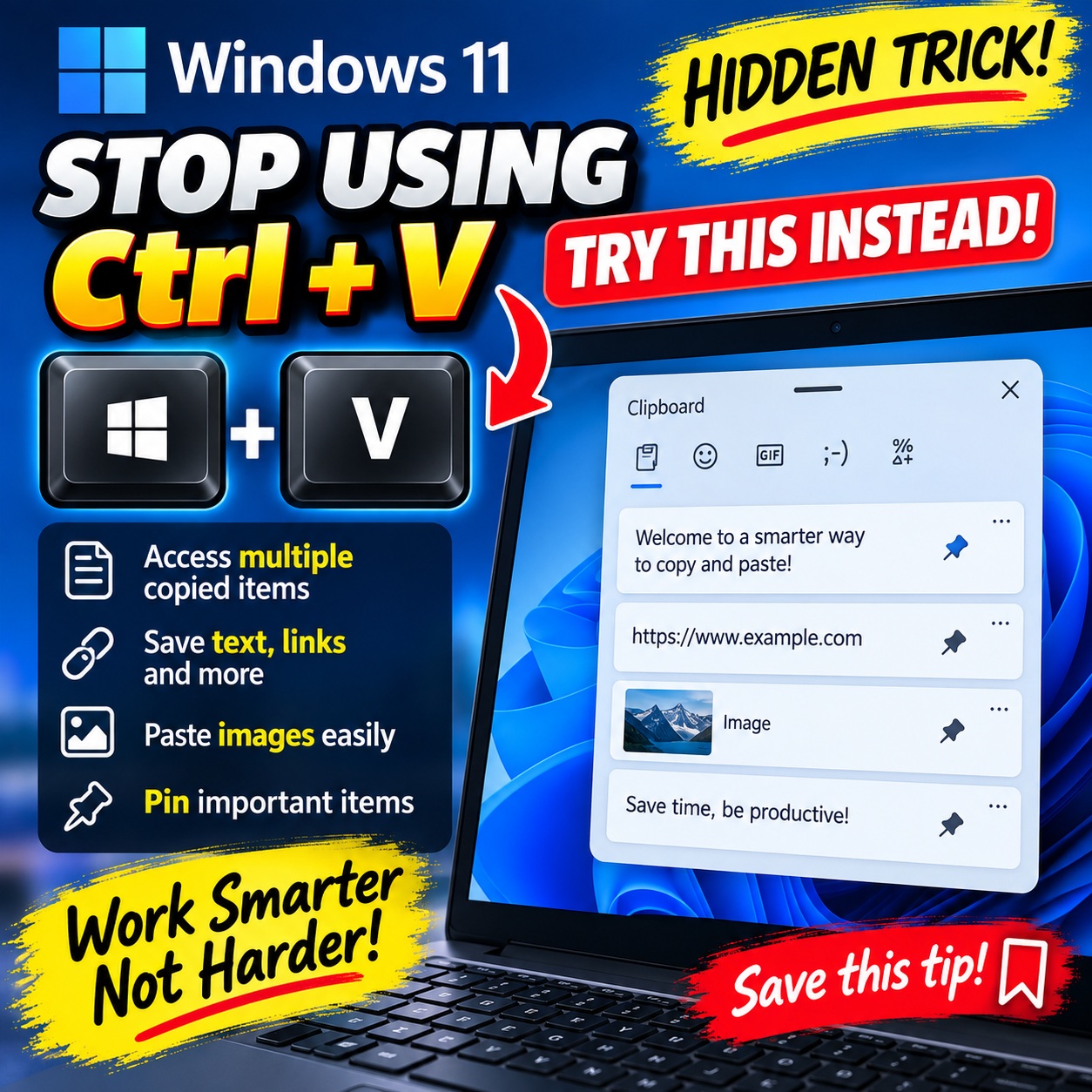
Keyboard shortcuts are an everyday fact of life for Microsoft users, but it just got more efficient. A hidden trick in Windows 11 saves time and streamlines workflows.
Windows 11 Clipboard History - More Than a Fringe Feature
Windows 11 has introduced a clipboard history feature that is more than just a minor addition. The clipboard history panel in Windows 11 lets you gather and manage multiple copied items, accessible with a quick Windows key + V shortcut. Unlike previous versions, Windows 11 makes managing clipboard data more intuitive. Windows 11's clipboard history panel is a great tool for individuals who work with multiple types of content. You can save text, links, and images, and you can easily paste them into any document. Running on Windows 11? You can view all your clipboard items and manage them directly within the clipboard history panel. This panel offers a range of features—you can manage multiple copied items, save text, and even paste images directly from it. Not only that, you can rearrange items and pin frequently used pieces of data to the top of the list for quick access. Plus, Windows saves everything you copy to the clipboard so you can look back in time without losing data. The clipboard history is an essential tool that helps you save time and become more productive.
A Changing Climate of Productivity
Efficiency is the key to any workplace evolution. This clipboard trick isn't about minor hacks or novelty shortcuts. It's about integrating an innovative workflow hack into the everyday computing environment. Having all your copied data in one place—including text, links, and images—transforms how people work with information. It is about creating a seamless and productive digital experience. Windows 11's clipboard history panel stands out in this context. It's not just an app: It's a digital habit that can increase productivity. From content creation to data analysis, having a clipboard that saves everything and lets you access all of your copied items with a few clicks will make the difference.
Ready to Rethink Copied Items
Windows Key + V : Opening the Vault
Windows 11 has a keyboard shortcut for everything. The Windows key + V shortcut is quickly proving itself a productivity game, giving you instant access to your clipboard history. This shortcut opens the Clipboard panel. This panel shows a list of recently copied items such as text, links, and images.
Managing Copied Items
The clipboard history feature centralizes all copied items, and users can manage them with few easy steps. Once open, the panel lets you see all the items you’ve copied. This includes not only text and links, but also images. It's a game-changer for people who frequently copy and paste multiple types of content in their workflow. You can pin frequently used items to the top of the list for quick access, rearrange them, and even delete individual pieces of data. With this feature, you’re maintaining a clean workspace at all times.
Clipboard's Power Moves
In Windows 11, you can paste from the clipboard in three unique ways. Users can paste directly by clicking on a copied item in the panel. Users can also pin items they frequently use at the top of the list. This helps you avoid digging through a list of copied items.
Work Smarter with Windows 11
What You Can't Pin
The clipboard history panel uses a memory management system that saves all items copied to it. But it’s important to note that there are limits set by the operating system. The clipboard history is set to hold up to 25 pieces of copied items at a time. The oldest items get cleared out of the panel when more items are added if the panel reaches its limit. When it comes to space and memory management, this is the only limitation.
Designing On-the-Spot Efficiency
One of the biggest perks of having a clipboard manager is the ability to work with multiple copied items. The clipboard history panel allows you to make sure that every piece of copied data is easily accessible and manageable. The clipboard history panel helps you keep your workspace clean by allowing you to pin frequently used items to the top of the list and delete less frequently used items. This combined with the ability to quickly arrange and pin items to the top of the list makes it easier to keep your workspace clean.
The Clipboard Advantage
Ratifying Right-Click Abuse
Managing multiple copied items in Windows 11 is easy and intuitive. For users accustomed to right-clicking to access the clipboard, the new clipboard manager is a savior. Accessing the clipboard history panel directly through the shortcut simplifies the process and eliminates the need to navigate through drop-down menus. This ease of use makes it a go-to choice for productivity hacks.
Considerations
One feature that stands out in the clipboard history panel is the ability to pin frequently used items to the top of the list. This ensures that the most important copied data is always accessible, no matter how much time passes or how many new items are added. This allows you to keep your workspace clean and make sure that the most important pieces of data are always at the top of the list.
Save this tip
The Windows 11 clipboard history panel might seem like a small innovation, but the control it offers over copied data can significantly boost productivity. You can access your copied items with the Windows key + V. The clipboard history also ensures that you can manage multiple copied items, pin frequently used items, and paste them easily. Don't miss out on this productivity hack.
Watch the Reel
Questions readers ask
What exactly is the clipboard history feature in Windows 11?
The clipboard history feature in Windows 11 is a tool that lets you access and manage all the items you've copied—text, links, and images—in one place. You can view, rearrange, pin, and delete these items using the clipboard history panel, which you can open with the Windows key + V shortcut.
How does the Windows key + V shortcut work?
The Windows key + V shortcut in Windows 11 opens the clipboard history panel, which displays a list of all the items you've copied recently. This panel allows you to manage these items, making it easier to access and paste them into your documents or applications.
Can I pin frequently used clipboard items for quicker access?
Yes, you can. The clipboard history panel in Windows 11 allows you to pin frequently used items to the top of the list. This way, you can access them more quickly without having to scroll through your entire clipboard history.
What types of content can I save and manage in the clipboard history panel?
You can save and manage a variety of content in the clipboard history panel, including text, links, and images. This makes it a versatile tool for anyone who works with multiple types of content, from content creators to data analysts.
Is the clipboard history feature available on older versions of Windows?
The clipboard history feature as described is specific to Windows 11. Previous versions of Windows may have had different clipboard management tools, but Windows 11's implementation is more intuitive and feature-rich, allowing for better organization and access to copied items.
How does the clipboard history panel help with productivity?
The clipboard history panel helps with productivity by centralizing all your copied items in one place. This means you can quickly access and paste text, links, and images without having to repeatedly copy and paste from different sources. It streamlines workflows and saves time, making it easier to manage information.
Can I delete individual items from the clipboard history panel?
Yes, you can delete individual items from the clipboard history panel. This feature allows you to keep your clipboard history organized and free of unwanted or outdated data, ensuring that you only have the most relevant items readily available.
Related deep dives
Similar reads based on topic and creator.

Recent articles
Fresh deep dives from the latest Reels we unpacked.




Comments
Be the first to comment.