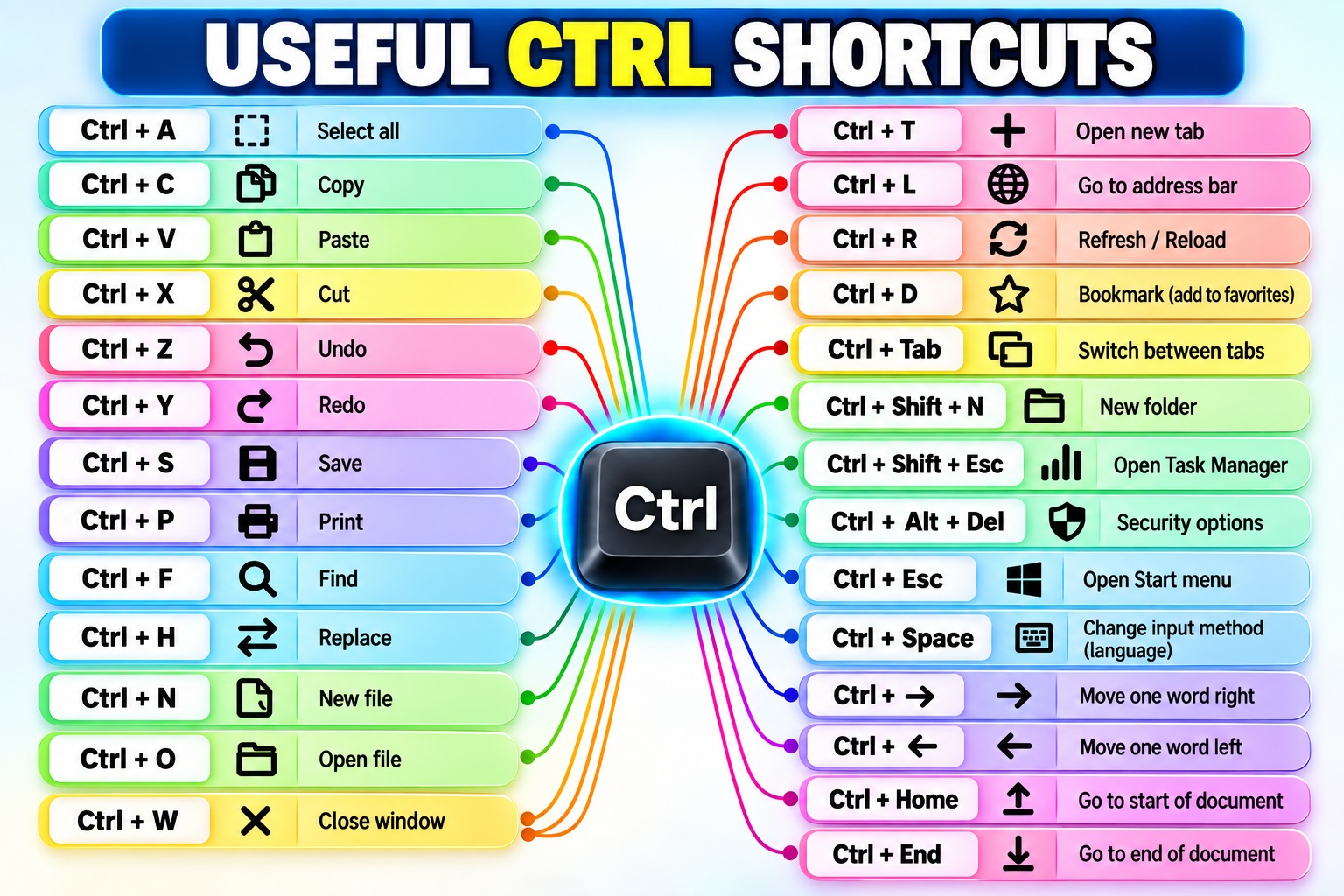
Tech life requires keyboard shortcuts because you need to repeat the mouse's role on the screen. Maximum efficiency means you must master shortcuts. The infographic shows that Ctrl+A is the most efficient shortcut to select all text.
Direct Pathways to Ease
Some shortcuts are more direct and descriptive than others. The obvious option here is copy and paste. What you need to do is press Ctrl + C to copy and Ctrl +V to paste. Yet not all shortcuts are as descriptive. Selecting all is enabled via Ctrl +A. Many users do not know it's possible to open the task manager on your keyboard with Ctrl + Shift + Esc. Most shortcuts revolve around the Ctrl key and many of them are useful for multitasking. Switching between tabs in your browser is also enabled via shortcuts. The shortcut here is Ctrl + Tab.
All at once
The Ctrl key is the base of most shortcuts. This is for a reason. It is the easiest key to hit while doing most tasks. Ctrl+A selects all the text and Ctrl+C copies it. Ctrl + V pastes the text. Many users get confused with Ctrl+X. Cut and copy are not the same. Copy duplicates the text while cut removes the text.
New and Open
Ctrl+N opens a new file, Ctrl+ O opens an existing file. You will also find shortcuts which open new windows, folders or even the start menu. The shortcut for opening the start menu is Ctrl+Esc while for opening a new folder is Ctrl+Shift+N. Ctrl+W closes current windows. Ctrl+ H is to replace. Ctrl+L is for going to the address bar.
Navigation
Ctrl+End takes you to the end of the document, while Ctrl+Home takes you back to the top. Similarly, Ctrl+Space is for browsing the web. You can also access the task manager via a shortcut. Ctrl+Shift+Esc is for the task manager but Ctrl+Alt+Del for security options.
Advanced keyboard shortcuts
Many shortcuts go beyond the basic copy-paste functions and even beyond the basic operating systems of computers. Changing the keyboard language is enabled by hitting Ctrl+Space. Many users will know that Ctrl+Alt+Del brings up the security options. But few will know Ctrl+B is for bold while Ctrl+ I is for italics. Many shortcuts are unique to the specific software or application.
Watch the Reel
Questions readers ask
What does Ctrl+A do and why is it considered so useful?
Ctrl+A is a keyboard shortcut that selects all text in a document or text box. It's incredibly useful because it allows you to quickly highlight and manipulate large amounts of text without having to manually select each part. This is especially handy when you need to copy, cut, or delete everything at once.
How do I open the Task Manager using just my keyboard?
You can open the Task Manager by pressing Ctrl+Shift+Esc. This shortcut is particularly useful when your computer is frozen or unresponsive, as it provides a quick way to access the Task Manager without using the mouse.
What's the difference between Ctrl+X and Ctrl+C, and when should I use each?
Ctrl+X is the shortcut for cutting text, which removes the selected text and places it on the clipboard. Ctrl+C, on the other hand, is for copying text, which duplicates the selected text and places it on the clipboard without removing the original. Use Ctrl+X when you want to move text to a new location, and use Ctrl+C when you want to duplicate text.
Can I use keyboard shortcuts to navigate through a document quickly?
Yes, there are several keyboard shortcuts that can help you navigate through a document efficiently. For example, Ctrl+End takes you to the end of the document, while Ctrl+Home takes you back to the top. These shortcuts can save you a lot of time when working with long documents.
Are there shortcuts for opening new files or folders?
Yes, Ctrl+N opens a new file, and Ctrl+Shift+N opens a new folder. These shortcuts are particularly useful for quickly creating new documents or organizing your files without having to use the mouse.
Related deep dives
Similar reads based on topic and creator.



Recent articles
Fresh deep dives from the latest Reels we unpacked.




Comments
Be the first to comment.