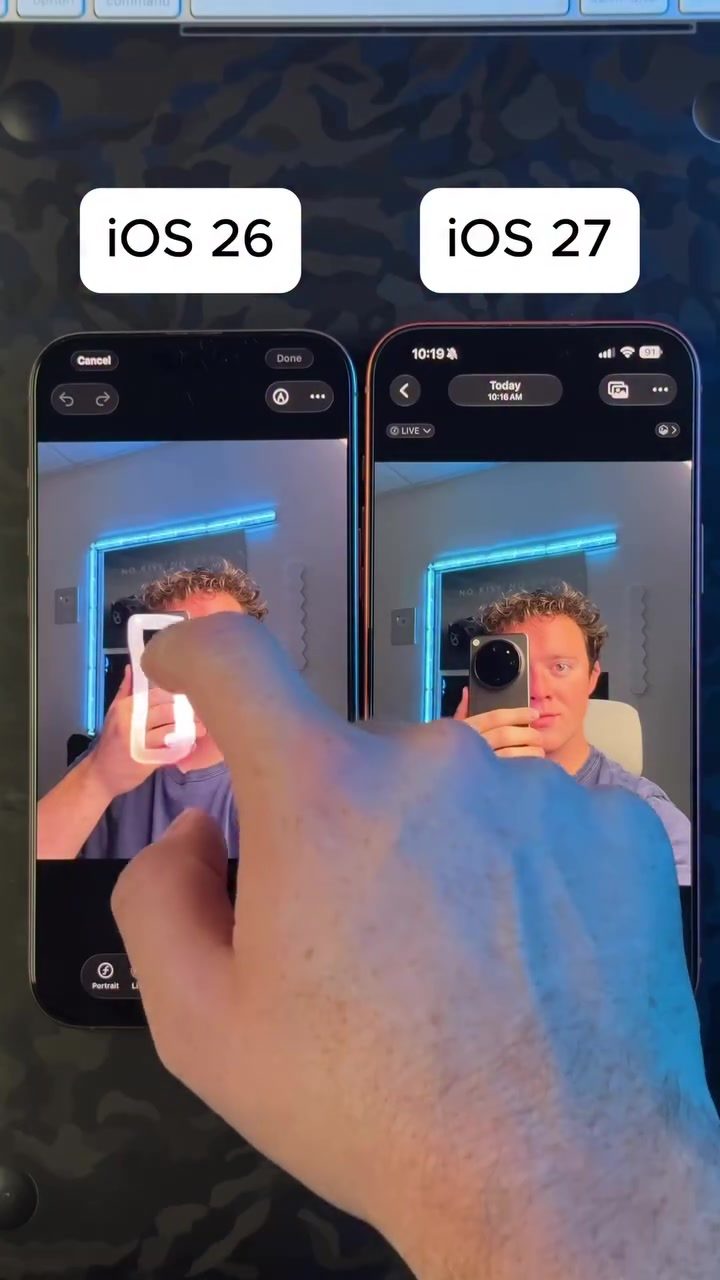
The Evolution of iPhone's AI-Powered Object Removal
The iPhone's camera technology continues to push boundaries, offering powerful tools for photo editing right within the device. One standout feature is the ability to automatically remove unwanted objects from photos. Let's dive into how this feature has evolved from iOS 26 to iOS 27.
Why This Matters
In an era where smartphones are our primary cameras, the ability to edit photos seamlessly is crucial. Removing unwanted objects from photos can save time and enhance the overall quality of images. This feature is particularly useful for travelers, photographers, and anyone who wants to share polished photos quickly.
The 'Clean Up' Feature
The 'Clean Up' feature in the iPhone's photo editing tools is designed to make photo editing effortless. This tool uses advanced AI to identify and remove unwanted objects from photos. The process is straightforward: users select the object they want to remove, and the AI handles the rest. This feature is a game-changer for those who want to edit photos on the go without needing complex software.
iOS 26 vs. iOS 27: The Evolution
iOS 26: The Foundation
iOS 26 introduced the 'Clean Up' feature, which allowed users to remove unwanted objects from their photos with a few taps. The feature was a significant leap forward in mobile photo editing, leveraging AI to seamlessly erase objects while maintaining the integrity of the background.
iOS 27: Enhanced Precision and Speed
iOS 27 builds on the foundation laid by iOS 26, offering even more precision and speed. The updated AI can handle more complex scenes and provides faster processing times. The split-screen comparison in the demo showcases the stark difference between the two versions, with iOS 27 delivering a more polished and natural-looking result.
Improved Object Detection
One of the key improvements in iOS 27 is the enhanced object detection capability. The AI can now recognize and remove objects more accurately, even in cluttered or detailed scenes. This means users can expect cleaner, more natural-looking edits with fewer artifacts.
Faster Processing
iOS 27 also brings faster processing times, making the 'Clean Up' feature more efficient. This is particularly useful for users who need to edit photos quickly and share them on social media or other platforms. The speed boost ensures that users can edit multiple photos in a short amount of time without compromising quality.
Enhanced Background Maintenance
Maintaining the background's integrity while removing an object is crucial for a natural-looking edit. iOS 27 has improved this aspect significantly. The AI now does a better job of preserving the background texture and lighting, making the edits almost imperceptible.
Practical Tips for Using the 'Clean Up' Feature
Selecting the Right Object
When using the 'Clean Up' feature, it's important to select the object accurately. Zoom in on the object to ensure that the AI has a clear target. This will help the tool remove the object more precisely and with fewer errors.
Editing in Natural Light
Natural light conditions can significantly affect the quality of edits. If possible, edit photos taken in natural light. The AI performs better under these conditions, resulting in cleaner and more natural-looking edits.
Reviewing the Edits
Always review your edits carefully. While the AI does an excellent job, it's essential to check for any remaining artifacts or inconsistencies. Making minor adjustments can further enhance the quality of the edit.
Experimenting with Different Scenes
The 'Clean Up' feature works well in various scenes, from landscapes to portraits. Experiment with different types of photos to see how the AI handles different objects and backgrounds. This will give you a better understanding of the tool's capabilities and limitations.
Important Takeaways
The 'Clean Up' feature in the iPhone's photo editing tools is a powerful tool for anyone looking to edit photos on the go. The evolution from iOS 26 to iOS 27 showcases significant improvements in precision, speed, and background maintenance. Whether you're a casual photographer or a professional, this feature can save you time and enhance the quality of your photos.
The Impact of AI in Mobile Photography
AI has revolutionized mobile photography, making it easier than ever to capture and edit high-quality images. The 'Clean Up' feature is a testament to how AI can enhance user experience and provide professional-grade editing tools right on your iPhone.
Conclusion
The 'Clean Up' feature in the iPhone's photo editing tools is a powerful addition to any photographer's toolkit. With each iOS update, the feature becomes more refined, offering faster processing times, enhanced object detection, and better background maintenance. Whether you're editing photos for social media or professional projects, the 'Clean Up' feature can help you achieve clean, natural-looking edits with minimal effort. Embrace the power of AI in mobile photography and take your editing skills to the next level.
Watch the Reel
Questions readers ask
What are the key improvements in iOS 27's AI object removal compared to iOS 26?
iOS 27's AI object removal offers enhanced precision, allowing for more accurate detection and removal of unwanted objects. Additionally, it processes complex scenes faster, making the editing process more efficient compared to iOS 26.
How does the 'Clean Up' feature work in iPhone photo editing?
The 'Clean Up' feature uses AI to automatically detect and remove unwanted objects from photos. Users can access this tool within the photo editing interface on their iPhone, making it convenient for quick edits.
Can I use the AI object removal feature on all photos taken with my iPhone?
Yes, the AI object removal feature can be used on any photo stored on your iPhone, regardless of when or how it was taken. This includes photos transferred from other devices or cameras.
Are there any limitations to the AI object removal feature in iOS 27?
While iOS 27's AI object removal is advanced, it may still struggle with very intricate or poorly lit scenes. The feature works best on clear, well-lit images with distinct objects. Additionally, the feature may not work well on already edited images.
Does using the AI object removal feature affect the original photo?
No, using the AI object removal feature does not alter the original photo. The edits are applied to a copy of the photo, allowing you to keep the original image untouched. You can save or share the edited version separately.
How do I access the AI object removal feature on my iPhone?
To access the AI object removal feature, open the Photos app, select the photo you want to edit, tap 'Edit,' and then choose the 'Clean Up' option. From there, you can use the AI to remove unwanted objects from the image.
Can I use the AI object removal feature to add new objects to my photos?
The AI object removal feature is designed specifically for removing unwanted objects, not for adding new ones. For adding objects or making other creative modifications, you may need to use additional photo editing apps.
Related deep dives
Similar reads based on topic and creator.




Recent articles
Fresh deep dives from the latest Reels we unpacked.




Comments
Be the first to comment.