Kali NetHunter: Mastering Mobile Penetration Testing
Kali NetHunter transforms smartphones into powerful penetration testing tools, and with the recent release of NetHunter 2026.2, the possibilities for mobile hacking have expanded significantly. This guide delves into the setup and configuration of NetHunter, focusing on key components like the Kali Linux chroot environment and the Evil Twin tool.
Why This Matters
In today’s interconnected world, mobile devices are prime targets for cyber attacks. Whether you're a professional penetration tester or a security enthusiast, having a mobile toolkit like NetHunter can be invaluable. It allows you to perform a wide range of security assessments directly from your smartphone, making it a versatile addition to your cybersecurity arsenal.
The NetHunter Installation Process
Downloading the Image
The first step in setting up NetHunter is to download the correct image for your specific device and operating system version. Visit the official NetHunter website and navigate to the downloads section. Ensure you select the appropriate image that matches your device’s specifications.
Flashing the Image
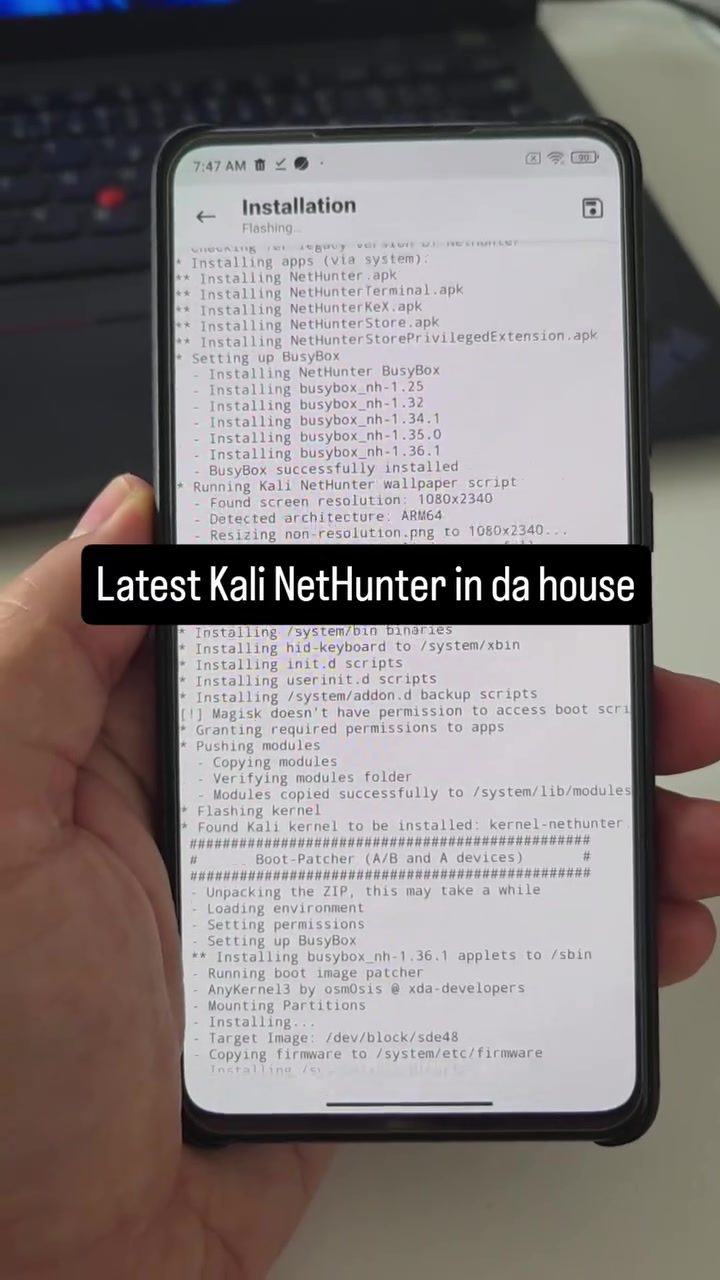
Once you have the image zip file, you need to flash it via Magisk. Magisk is a popular rooting solution that allows for systemless root, meaning you can install and remove root without modifying the system partition. This is crucial for maintaining the integrity of your device.
- Extract the Zip File: Unzip the downloaded image file to access the necessary components.
- Open Magisk Manager: Launch the Magisk Manager app on your device.
- Select the Image: Within Magisk Manager, choose the option to install from the storage and select the extracted image file.
- Flash the Image: Follow the on-screen instructions to flash the image. This process typically involves rebooting your device.
Setting Up the Kali Linux Chroot Environment
After flashing the image, the next critical step is setting up the Kali Linux chroot environment. This environment allows you to run Kali Linux tools directly on your Android device.
- Install BusyBox: BusyBox is a software suite that provides several Unix tools in a single executable file. It is essential for the Kali Linux chroot environment to function correctly. Open the NetHunter app and install BusyBox nh-1.35.0.
- Configure Kali Chroot Manager: Use the Kali Chroot Manager to set up the chroot environment. This tool simplifies the process of configuring and managing the chroot.
Configuring Network Interfaces
NetHunter leverages the wireless capabilities of your smartphone to conduct penetration testing. Configuring the network interfaces is a crucial part of this setup.
- Monitor Interface: Set up the monitor interface, which allows you to capture and analyze network traffic. This is typically done through the NetHunter app, where you can select the appropriate monitor mode for your wireless adapter.
- Wlan0 (Dual Band): Ensure that your device supports dual-band Wi-Fi (2.4GHz and 5GHz). This configuration can be verified in the network settings of your device.
Utilizing the Evil Twin Tool
What is the Evil Twin Tool?
The Evil Twin tool is a powerful feature within NetHunter that allows you to create a fake access point, mimicking a legitimate network. This tool is particularly useful for testing the security of Wi-Fi networks and understanding how vulnerable they are to man-in-the-middle attacks.
Setting Up the Evil Twin
- Access the Tool: Open the NetHunter app and navigate to the Evil Twin section.
- Configure the Target: Set the target configuration options, including the SSID and security settings of the network you wish to mimic. This step requires careful attention to detail to ensure the fake access point is convincing.
- Scan Networks: Use the SCAN NETWORKS feature to identify available networks and gather information about their configurations. This data can be used to fine-tune your Evil Twin setup.
- Create a Virtual AP: From the wlan0 interface, create a virtual access point that mimics the target network. This involves setting up the necessary parameters and ensuring the fake AP is broadcasting correctly.
Practical Tips for Optimal Performance
Regular Updates
Keeping your NetHunter installation up to date is essential for maintaining its effectiveness. Regular updates ensure you have the latest tools and security patches.
Backup Your Data
Before flashing any new images or making significant changes to your device, always back up your data. This precaution can save you from losing important information in case something goes wrong during the setup process.
Testing in a Controlled Environment
Always conduct your penetration testing in a controlled environment, preferably with explicit permission from the network owner. This practice ensures you are complying with legal and ethical guidelines.
Important Takeaways
- Versatility: NetHunter turns your smartphone into a powerful penetration testing tool, making it an excellent addition to your cybersecurity toolkit.
- Ease of Use: The process of setting up NetHunter, including flashing the image and configuring the chroot environment, is straightforward with the right guidance.
- Effective Tools: Tools like the Evil Twin tool provide robust capabilities for network security testing, making it easier to identify and mitigate vulnerabilities.
Conclusion
Mobile penetration testing with Kali NetHunter offers a unique and powerful approach to assessing network security. By following the steps outlined in this guide, you can effectively set up and configure NetHunter on your smartphone, leveraging its capabilities to conduct comprehensive security assessments. Whether you're a seasoned cybersecurity professional or just starting, NetHunter provides the tools and flexibility needed to stay ahead in the ever-evolving world of cybersecurity.
Watch the Reel
Questions readers ask
How do I download the NetHunter 2026.2 image for installation on my Android device?
To download the NetHunter 2026.2 image, visit the official Kali NetHunter website and navigate to the downloads section. Look for the NetHunter 2026.2 release and download the appropriate zip file for your device. Ensure you have enough storage space before beginning the download.
What are the prerequisites for installing NetHunter on my Android device?
Before installing NetHunter, your Android device must be rooted and have at least 16GB of free storage. Additionally, ensure that your device uses an ARM-based processor and has a custom recovery like TWRP installed. You'll also need a compatible device that is officially supported by NetHunter.
How do I configure the NetHunter chroot environment after installation?
Once NetHunter is installed, you need to configure the chroot environment. This involves setting up the Kali Linux environment within your Android device. You can do this by launching the NetHunter app, selecting the 'Start Kali NetHunter' option, and following the on-screen instructions to complete the chroot setup.
What is the Evil Twin tool and how can I use it with NetHunter 2026.2?
The Evil Twin tool in NetHunter is used to create a fake WLAN access point to intercept and manipulate network traffic. To use it, navigate to the NetHunter app, access the 'Network Tools' section, and select 'Evil Twin.' Follow the prompts to configure the tool and create a rogue access point, targeting the network of your choice.
How do I ensure that my NetHunter installation is up-to-date?
To keep your NetHunter installation current, use the NetHunter app to check for updates regularly. Go to the 'Update' section within the app and follow the instructions to download and install the latest updates. This ensures you have the most recent tools and features for mobile hacking.
What should I do if I encounter issues with the NetHunter interface configuration?
If you face issues with the NetHunter interface, try restarting the NetHunter app and your device. Ensure that all necessary permissions are granted and that your device is running a compatible version of Android. If problems persist, consult the official NetHunter documentation or seek help from the NetHunter community for troubleshooting assistance.
How do I install the NetHunter zip file on my Android device?
To install the NetHunter zip file, boot your device into custom recovery mode, such as TWRP. From there, select the 'Install' option and navigate to the location of the downloaded NetHunter zip file. Swipe to confirm the installation and wait for the process to complete. Once done, reboot your device to finalize the setup.
Related deep dives
Similar reads based on topic and creator.




Recent articles
Fresh deep dives from the latest Reels we unpacked.




Comments
Be the first to comment.