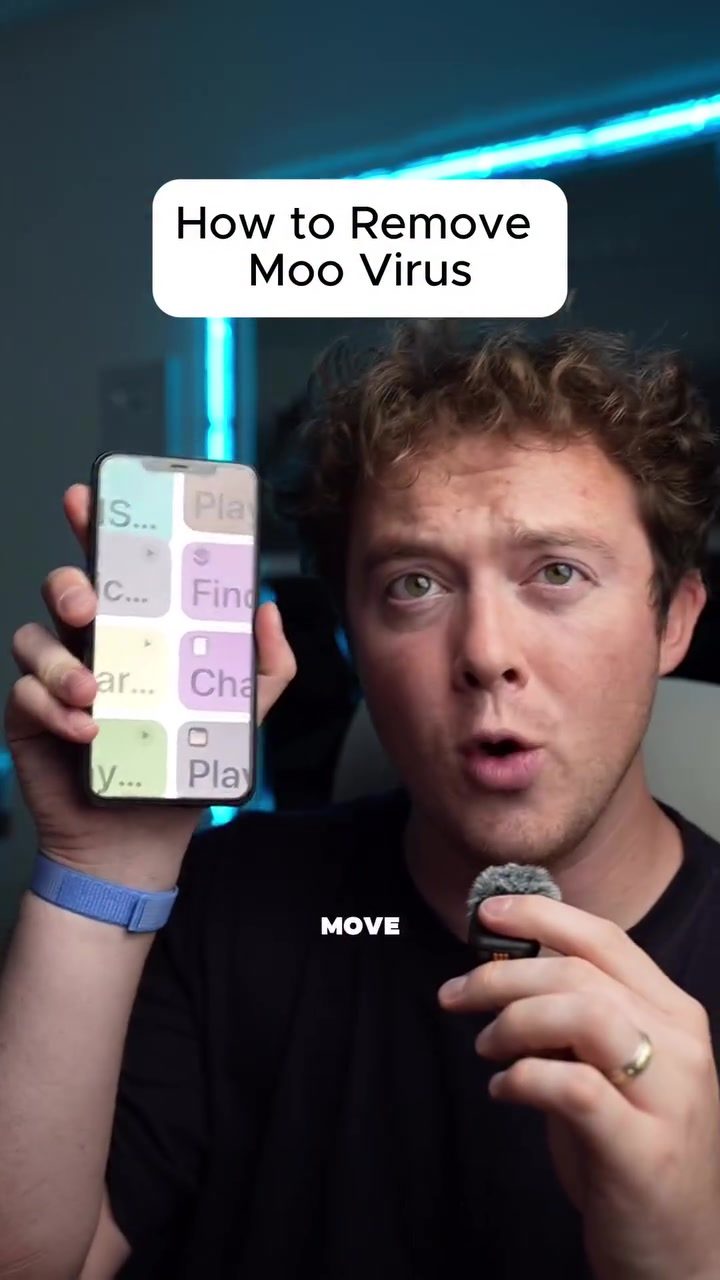
Eliminating the Moo Virus from Your iPhone
The Moo Virus can be a frustrating issue for iPhone users, but it's possible to remove it without deleting your settings. This guide will walk you through the process, ensuring your phone is back to normal in no time.
Why This Matters
The Moo Virus can cause significant disruptions, including unwanted noise, color inversion, and other display issues. By following these steps, you can resolve these problems without losing your personal settings, saving you the hassle of resetting your device.
Step-by-Step Removal Process
Initial Steps
The first step in removing the Moo Virus is to pause the unwanted noise. Here’s how to do it:
- Pause the Noise:
- Open the screen and triple-tap to zoom out.
- Tap the pause button to stop the noise.
Adjusting Display and Text Settings
Once the noise is paused, the next step is to adjust your display and text settings. This involves navigating through the iPhone's accessibility options:
-
Accessibility Settings:
- Go to the "Settings" app on your iPhone.
- Scroll down and select "Accessibility."
- From there, go to "Display & Text Size."
-
Turn Off Smart Invert:
- Toggle off "Smart Invert" to turn off the inverted colors.
-
Turn Off Color Filters:
- Turn off the "Color Filters" to restore normal color settings.
-
Turn Off Reduced White Point:
- Turn off "Reduced White Point" to eliminate any reduced white point settings.
-
Adjust Text Size:
- Click on "Larger Text" and adjust it back to your preferred size. Sometimes, the settings won't switch fully, and you might need to restart your phone for the changes to take effect.
Final Adjustments
After making these changes, your phone should be close to normal. However, there are a few more steps to ensure everything is back to how it should be:
-
Restart Your Phone:
- If the settings don't fully switch, restart your phone. This often resolves any lingering issues.
-
Turn Off AirPlay Mode:
- Make sure to turn off "AirPlay" mode to avoid any further disruptions.
-
Turn Bluetooth Back On:
- Turn your Bluetooth back on to ensure connectivity.
-
Return to Shortcuts:
- Go back to your "Shortcuts" app and ensure everything is working properly.
Sharing the Fix
If you found this method helpful, consider sharing it with friends who might be experiencing similar issues. Simply hit the share button and send the method to others.
Practical Tips
- Backup Your Data: Before making significant changes, always back up your data. This ensures you don't lose any important information in case something goes wrong.
- Check for Updates: Regularly update your iPhone’s software to protect against future viruses and malware.
- Use Reputable Apps: Only download apps from trusted sources to minimize the risk of viruses.
Important Takeaways
- No Need to Delete Settings: Removing the Moo Virus doesn't require deleting your settings, making the process much easier and less time-consuming.
- Steps Are Simple: The steps are straightforward and can be completed by anyone, even those who are not tech-savvy.
- Restarting Helps: If changes don't take effect immediately, a simple restart can resolve the issue.
Conclusion
Eliminating the Moo Virus from your iPhone is a straightforward process that can be completed without deleting your settings. By following these steps, you can restore your phone to normal functionality quickly and efficiently. If you encounter any issues, don't hesitate to restart your phone or reach out for additional support.
Watch the Reel
Questions readers ask
What are the common symptoms of the Moo Virus on an iPhone?
The Moo Virus can manifest in several ways, including persistent unwanted noise, color inversion, and other display issues. If you notice any of these problems, it's likely that your iPhone has been affected by the Moo Virus.
Can I remove the Moo Virus without losing my personal settings?
Yes, it is possible to remove the Moo Virus without deleting your personal settings. By following the specific steps outlined in the guide, you can restore your iPhone to its normal state without any data loss.
What should I do first if I suspect my iPhone has the Moo Virus?
The first step is to pause the unwanted noise. Open the screen and triple-tap to zoom out. Then, tap the pause button to stop the noise. This initial action can help you regain control over your device before proceeding with further steps.
How can I fix display problems caused by the Moo Virus?
To address display problems, such as color inversion, you can use the accessibility features on your iPhone. Go to Settings > Accessibility and adjust the display settings to restore normal functionality.
What if the initial steps do not resolve the Moo Virus issue?
If the initial steps do not resolve the issue, you may need to use more advanced techniques, such as resetting all settings or contacting Apple support for further assistance. It's important to follow the guide carefully to avoid data loss.
Can I use iPhone shortcuts to fix the Moo Virus?
Yes, there are specific shortcuts and settings you can adjust to fix the Moo Virus. For example, using the triple-tap to zoom out and accessing the pause button can help. Additionally, adjusting accessibility settings can resolve display issues.
What if I need more help after trying the steps to fix the Moo Virus?
If you still encounter issues after following the steps, it may be beneficial to reach out to Apple support for additional help. They can provide personalized assistance and ensure your iPhone is restored to normal functionality.
Related deep dives
Similar reads based on topic and creator.




Recent articles
Fresh deep dives from the latest Reels we unpacked.



Comments
Be the first to comment.