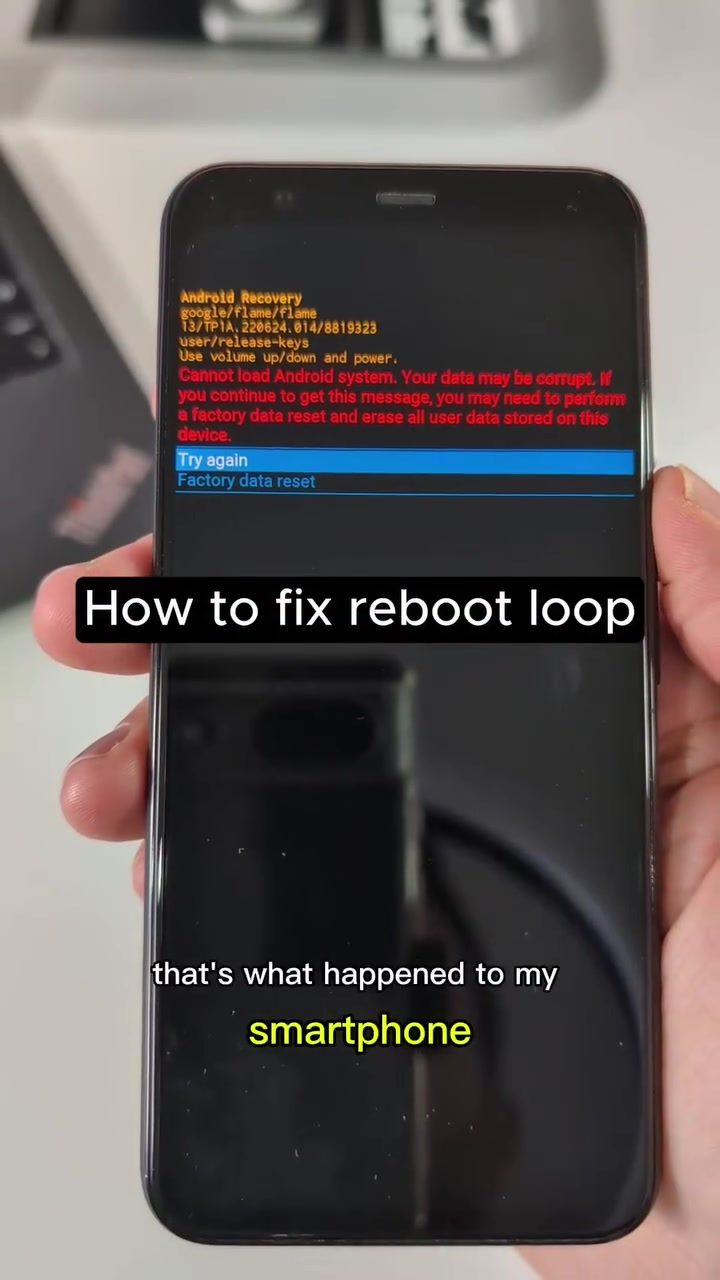
Fixing an Android Boot Loop: Flashing a Clean System Image
An Android smartphone stuck rebooting in a loop can be a frustrating experience. Whether it's a Pixel device or another Android smartphone, encountering this issue can disrupt daily use. This guide will walk you through the process of fixing a reboot loop by flashing a clean system image, thereby avoiding the need for a factory reset that erases all apps and logins.
Why This Matters
When an Android device gets stuck in a reboot loop, it can be due to various reasons such as corrupted data, software glitches, or failed updates. A factory data reset is a common solution, but it wipes all user data, including apps, logins, and settings. Flashing a clean system image offers a way to resolve the issue without losing this data.
Main Discussion
Understanding the Reboot Loop
A reboot loop occurs when the device repeatedly restarts without successfully loading the operating system. This can happen due to software corruption, failed updates, or issues with the system files. The smartphone in question repeatedly boots back to recovery mode, making it impossible to interact with the device normally.
Preparing for the Fix
To fix the reboot loop, you will need a laptop and a few key tools:
- ADB (Android Debug Bridge) and Fastboot: These are command-line tools that let you communicate with your Android device. They are essential for flashing a new system image.
- NetHunter Device: This is a specialized Android device that can be used to interact with other Android devices in recovery mode, particularly when the laptop's USB ports are not cooperating.
- Stock Android Image: You need a system image specific to your device model and version. This image will replace the corrupted system files.
Step-by-Step Guide
1. Accessing Recovery Mode
- Boot into Recovery Mode: Start by booting your device into recovery mode. This can usually be done by holding down the volume up/down and power buttons simultaneously until the recovery screen appears.
- Factory Data Reset: In recovery mode, you may see an option to perform a factory data reset. This step can sometimes resolve the issue, but it will erase all data on the device. If the problem persists, proceed to the next steps.
2. Using ADB and Fastboot
- Install ADB and Fastboot: On your laptop, install ADB and Fastboot. These tools can typically be downloaded from the Android developer website.
- Connect the Device: Plug your smartphone into the laptop using a USB cable. If the device is in fastboot mode, you should see it recognized by the Fastboot command.
- Identify the Issue: If the device is not visible in Fastboot, check your USB connection. Sometimes, a different USB port (e.g., USB 2.0 instead of USB 3.0) or a different cable can resolve connectivity issues.
3. Using a NetHunter Device
If the laptop's USB ports are not recognizing the device in Fastboot mode, you can use a NetHunter device:
- Connect the NetHunter Device: Plug the NetHunter smartphone directly into your Android device.
- Check Fastboot: Use the NetHunter device to verify that the smartphone is visible in Fastboot mode. Once confirmed, proceed with the flashing process.
4. Flashing the System Image
- Download the Image: Download the appropriate system image for your device. The image ID can often be found on the screen when the device is in recovery mode.
- Unzip and Prepare: Unzip the downloaded image and open a terminal on your laptop. Navigate to the directory where the image is unzipped.
- Connect via OTG: Use an OTG (On-The-Go) adapter to connect your device to the laptop. Ensure the device is in the bootloader.
- Reboot to Recovery: From recovery mode, reboot the device to Fastboot.
- Flash the Image: In Fastboot mode, trigger the flash all script. This command will overwrite the entire system image on your device.
- Reboot the Device: Once the flashing process is complete, reboot the device. It should now boot up normally.
Practical Tips
- Backup Data: If possible, back up important data before attempting these steps. Although this method aims to avoid data loss, it's always good to have a backup.
- Check USB Connections: Ensure that your USB ports and cables are functioning correctly. Sometimes, a simple cable swap can resolve connectivity issues.
- Use Correct Tools: Make sure you have the right version of ADB and Fastboot installed on your laptop. Compatibility issues can arise if the tools are outdated.
- NetHunter as a Backup: Keep a NetHunter device handy in case your laptop's USB ports are not cooperating. This device can be a lifesaver in such situations.
Important Takeaways
- Avoid Factory Reset: Flashing a clean system image allows you to fix the reboot loop without wiping all your apps and logins.
- Use Correct Tools: Ensure you have the right tools (ADB, Fastboot, NetHunter) and follow the steps carefully.
- Check USB Connections: Pay attention to USB port and cable compatibility to avoid connectivity issues.
Conclusion
Fixing an Android reboot loop by flashing a clean system image is a practical solution that helps you avoid losing your apps and logins. By understanding the process and using the right tools, you can effectively troubleshoot and resolve this issue. Whether you're using a Pixel device or another Android smartphone, these steps will guide you through the process and get your device back to normal operation.
Watch the Reel
Questions readers ask
What is a boot loop and why does it occur on Android Pixel devices?
A boot loop occurs when your Android Pixel device restarts repeatedly without fully starting up. This can happen due to corrupted data, software bugs, or failed system updates. It disrupts normal phone functionality and can be quite frustrating.
Can I fix an Android boot loop without performing a factory reset?
Yes, it is possible to fix an Android boot loop without a factory reset. By flashing a clean system image, you can resolve the issue and restore your phone to working order without erasing your apps and logins.
What is flashing a clean system image and how does it help?
Flashing a clean system image involves replacing the current system software with a fresh, uncorrupted version. This process helps fix software-related issues causing the boot loop, such as corrupted data or failed updates, without deleting your personal data.
How do I enter recovery mode on an Android Pixel device?
To enter recovery mode, power off your Pixel device. Press and hold the Power and Volume Down buttons simultaneously, then release when the bootloader menu appears. Use the Volume buttons to navigate and the Power button to select Reboot to recovery mode.
What is Fastboot mode and how do I use it to fix a boot loop?
Fastboot mode is a special diagnostic and flashing mode in Android devices. To enter it, power off your Pixel device and press and hold the Power and Volume Down buttons. Use Fastboot commands via a computer to flash a clean system image, which can help resolve the boot loop issue.
Will flashing a clean system image delete my apps and logins?
No, flashing a clean system image does not delete your apps or logins. This process specifically targets the system software, leaving your personal data and apps intact. However, it's always a good practice to back up important data before performing any software modifications.
What tools do I need to flash a clean system image on an Android Pixel device?
To flash a clean system image, you will need a computer with the Android SDK platform tools installed, a USB cable to connect your device, and the appropriate system image file for your specific Pixel model. You may also want to download and install the Fastboot tool for easier navigation of the process.
Related deep dives
Similar reads based on topic and creator.




Recent articles
Fresh deep dives from the latest Reels we unpacked.




Comments
Be the first to comment.