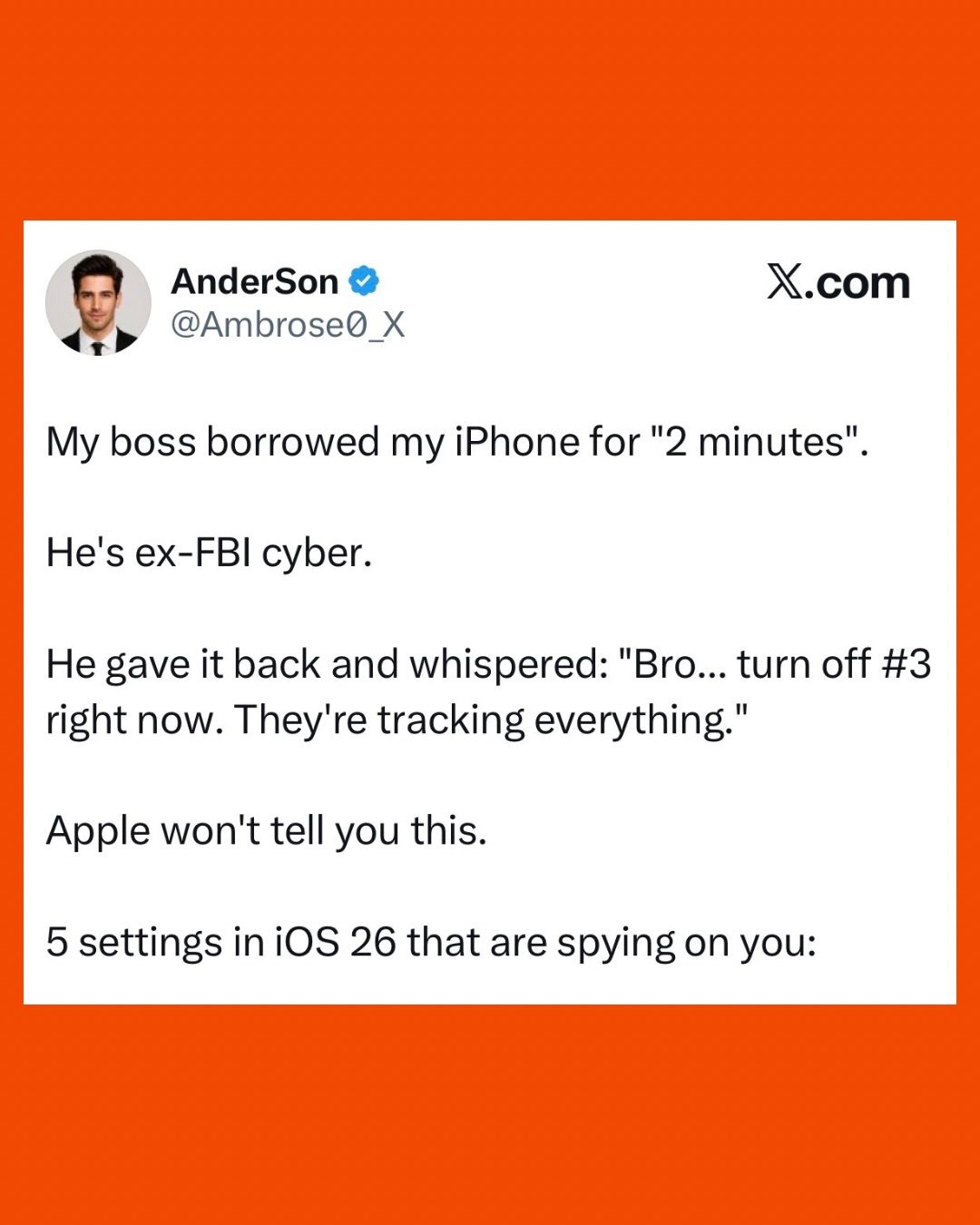
iOS Privacy Settings: How to Protect Your iPhone
iOS built-in privacy settings can help protect your data, but many users are unaware of the extent to which their iPhones can track their activities. Knowing how to adjust these settings can help safeguard personal information. Here's how to navigate through some of the key privacy settings on your iPhone.
Why This Matters
In today's world, digital privacy is more important than ever. With smartphones constantly connected to the internet, it's crucial to understand how your device collects and shares your data. Apple's iPhone, for instance, offers a range of privacy settings that, when properly configured, can significantly enhance your data security. This guide will focus on several critical privacy settings that can help protect your personal information.
Understanding iPhone Privacy Settings
App Tracking
One of the most concerning aspects of iPhone privacy is app tracking. Apps can follow your activities across different platforms, collecting data that is often used for targeted advertising. For example, mentioning a brand like Nike in a conversation can lead to a barrage of Nike ads for weeks. To disable app tracking, follow these steps:
- Open Settings: Navigate to the "Settings" app on your iPhone.
- Go to Privacy: Scroll down and tap on "Privacy."
- Tracking: Tap on "Tracking."
- Turn Off Tracking: Turn off the toggle for "Allow Apps to Request to Track."
Location Diary
Your iPhone keeps a detailed record of your location history, which can be quite invasive. This "location diary" includes information about where you've been, such as your home, work, and frequented places. To delete your location diary, follow these steps:
- Open Settings: Go to the "Settings" app.
- Privacy: Tap on "Privacy."
- Location Services: Select "Location Services."
- System Services: Scroll down and tap on "System Services."
- Significant Locations: Turn off the toggle for "Significant Locations."
- Clear History: Tap on "Clear History" to erase your location data.
Precise Location Sharing
While some apps require precise location data to function correctly, many do not. Apps like Uber need your exact location to provide services, but others, like Instagram, do not. By default, many apps are set to use precise location data, which can be adjusted to improve privacy.
- Open Settings: Go to the "Settings" app.
- Privacy: Tap on "Privacy."
- Location Services: Select "Location Services."
- Select App: Tap on the app for which you want to adjust location settings.
- Precise Location: Turn off the toggle for "Precise Location."
Practical Tips
Regularly Review Privacy Settings
Privacy settings can be adjusted from time to time, especially after iOS updates. Make it a habit to review and update your privacy settings periodically. Pay special attention to location services and app tracking, as these are the most likely to change without your knowledge.
Use Strong Passcodes and Biometric Authentication
Ensure your iPhone is protected with a strong passcode or biometric authentication (Face ID or Touch ID). This adds an extra layer of security, preventing unauthorized access to your device and data.
Be Cautious with Third-Party Apps
Not all third-party apps have the same level of data protection. Be cautious about the apps you download and install. Always check the app's privacy policy and permissions before granting access to your data.
Important Takeaways
Disabling App Tracking
Disabling app tracking is a crucial step in protecting your privacy. By turning off the "Allow Apps to Request to Track" setting, you can prevent apps from following your activities across different platforms.
Deleting Your Location Diary
Deleting your location diary can help erase your digital footprints. By turning off "Significant Locations" and clearing your history, you can prevent your iPhone from recording your movements.
Adjusting Precise Location Sharing
Adjusting precise location sharing for apps can help improve your privacy. While some apps need your exact location, many do not. By turning off precise location sharing, you can limit the amount of data these apps can collect.
Conclusion
Protecting your privacy on an iPhone involves understanding and adjusting various settings. By disabling app tracking, deleting your location diary, and adjusting precise location sharing, you can significantly enhance your data security. Regularly reviewing your privacy settings and being cautious with third-party apps can further safeguard your personal information.
Watch the Reel
Questions readers ask
How do I turn off app tracking on my iPhone?
To disable app tracking, go to 'Settings' > 'Privacy' > 'Tracking'. Toggle off 'Allow Apps to Request to Track' to prevent apps from accessing your data for targeted advertising purposes.
What is the 'Ask App Not to Track' setting on iOS?
The 'Ask App Not to Track' setting allows you to request that an app does not track your data. This can be found in the app's permissions settings, and while it does not guarantee that the app will comply, it is a step towards limiting data sharing.
How can I delete my iPhone's location history?
To delete your location history, open the 'Settings' app, tap on your name at the top, select 'Find My' > 'History' and toggle it off. This will stop the collection of your location history. You can also manually clear the history by scrolling through the list and tapping on various locations and then tapping on 'Stop Sharing My Location.'
Why should I turn off precise location on my iPhone?
Turning off precise location can enhance your privacy by preventing apps from accessing your exact location. This can be done in the app-specific settings under 'Location' services, where you can select 'While Using the App' or choose 'Never' for precise location access.
What are the benefits of disabling app tracking on my iPhone?
Disabling app tracking can significantly reduce the amount of personal data shared with third parties, helping to protect your privacy and prevent targeted advertising. It limits your exposure to data breaches and potential misuse of your information.
How can I stop apps from sharing my location on iOS?
To prevent apps from sharing your location, navigate to 'Settings' > 'Privacy' > 'Location Services'. Here, you can select individual apps and choose 'Never' to block location access or select 'While Using the App' for more controlled sharing.
What are some key privacy settings I should enable on my iPhone?
Some key privacy settings to enable include disabling app tracking, turning off precise location for specific apps, and limiting ad tracking. Regularly reviewing and updating your permissions and settings can help maintain your privacy and protect your personal information.
Related deep dives
Similar reads based on topic and creator.



Recent articles
Fresh deep dives from the latest Reels we unpacked.




Comments
Be the first to comment.