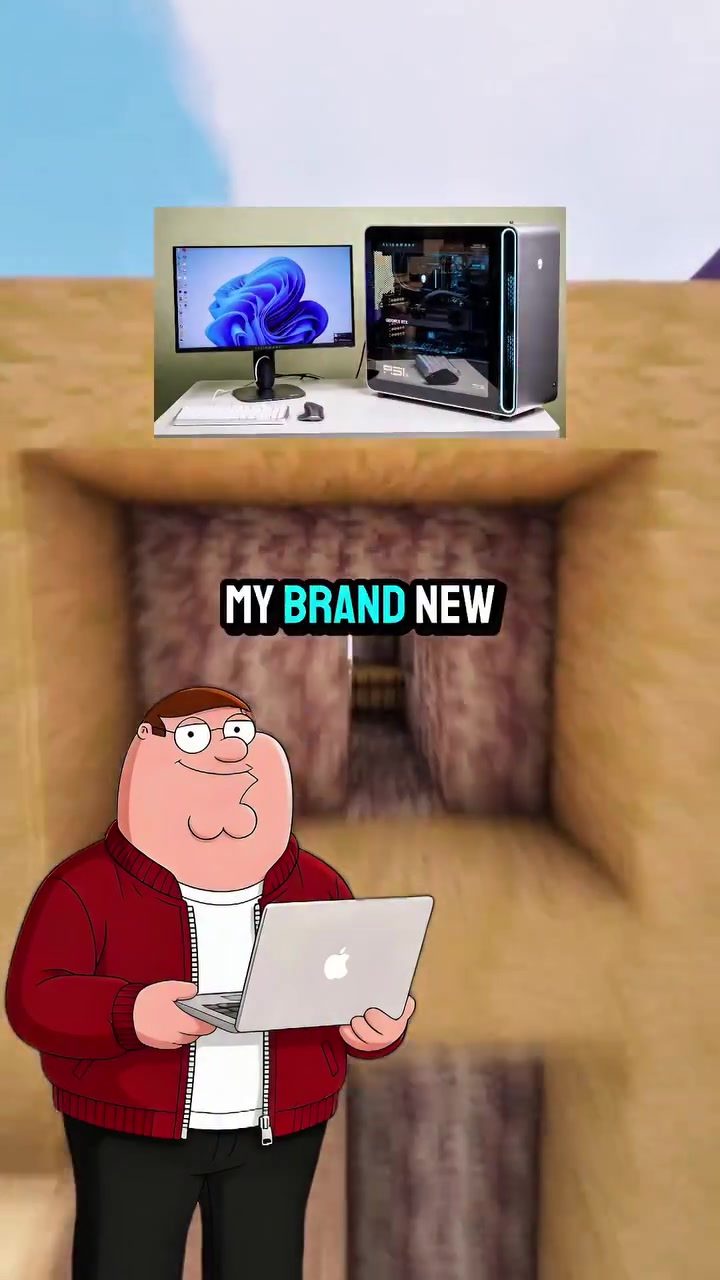
The Problem with New PCs: Bloatware and Hidden Junk
New PCs, especially those running Windows, often come with a hidden problem: bloatware. This unnecessary software can slow down your system, eat up your RAM and CPU, and even track your activities. Microsoft preloads these apps and services on every new PC, leading to a frustrating experience right out of the box. Let's break down what bloatware is, why it's a problem, and how you can get rid of it.
Why This Matters
Bloatware isn't just annoying; it can significantly impact your PC's performance. These pre-installed apps and services run in the background, consuming system resources and slowing down your computer. This is especially frustrating for users who expect a new PC to run smoothly.
Microsoft's default on-preloaded software includes Cortana, telemetry trackers, Xbox services, OneDrive Sync, and Bing widgets. These applications are designed to enhance the user experience, but they often do the opposite by hogging resources and causing your PC to feel sluggish.
Understanding Bloatware
Bloatware refers to unnecessary software that comes pre-installed on new devices. These programs are often bundled with the operating system and can range from basic utilities to full-fledged applications. While some bloatware is harmless, others can be intrusive and difficult to remove.
Common Types of Bloatware
- Trialware: Software that comes with a free trial period but requires payment to continue using.
- Advertising Software: Applications that display ads and track user behavior.
- Utilities: Basic tools like system optimizers, antivirus trials, and media players.
- Phone and PC apps: Software specifically designed for a particular device.
Why Microsoft Pre-installs Bloatware
Microsoft has several reasons for pre-installing bloatware on new PCs:
- Revenue: By bundling trialware and advertising software, Microsoft can generate additional revenue.
- User Experience: Some pre-installed apps are designed to enhance the user experience by providing useful tools and services.
- Data Collection: Telemetry trackers help Microsoft collect data on user behavior, which can be used to improve future software updates.
How to Remove Bloatware
Getting rid of bloatware can be a challenge, as these programs are often locked in deep system settings. However, there is a free and effective way to remove them.
The Command Prompt Solution
- Open Command Prompt as Administrator: Press the Windows key, type "command prompt," right-click it, and select "Run as administrator." Click "Yes" when prompted for permission.
- Enter the Command: Type
irmchristitas.com/win | ixand press Enter. This command will download and run a powerful, open-source debloat tool trusted by millions.
Using the Debloat Tool
- Launch the Program: After running the command, a program will automatically pop up on your screen.
- Select Tweaks: Click on "Tweaks" at the top of the program.
- Choose Standard Preset: Click on "Standard." This preset is designed to remove every piece of bloatware and kill unnecessary background services safely.
- Run Tweaks: Hit "Run tweaks" and let the tool work its magic. It will strip out all the junk Microsoft buried on your PC, significantly improving your performance.
Practical Tips for Keeping Your PC Clean
Once you've removed the bloatware, maintaining a clean PC is crucial. Here are some practical tips to keep your system running smoothly:
- Avoid Installing Unnecessary Software: Be selective about the software you install. Avoid downloading trialware and advertising software.
- Regularly Clean Your System: Use built-in tools or third-party software to clean out temporary files, cache, and other junk that accumulates over time.
- Disable Unnecessary Startup Programs: Use the Task Manager to disable programs that start automatically with your PC. This can free up system resources and improve boot times.
- Keep Your System Updated: Regularly update your operating system and software to benefit from performance improvements and security patches.
Important Takeaways
New PCs often come with a lot of hidden junk that can slow down your system. Microsoft preloads these apps and services for various reasons, but they can be removed using a simple command and an open-source debloat tool. By keeping your PC clean and maintaining good habits, you can ensure optimal performance and a better user experience.
Conclusion
Bloatware is a common issue with new PCs, but it doesn't have to be a permanent problem. By understanding what bloatware is, why it's pre-installed, and how to remove it, you can take control of your PC's performance. Using the command prompt and a trusted debloat tool, you can strip out all the unnecessary junk and enjoy a faster, smoother computing experience.
Watch the Reel
Questions readers ask
What exactly is bloatware and why should I remove it from my new Windows PC?
Bloatware refers to unnecessary pre-installed software that comes with new Windows PCs. Removing it can free up system resources, reduce background processes, and enhance your PC's overall performance. This can lead to a faster and more efficient computing experience.
Can removing bloatware help reduce startup time on my new Windows PC?
Yes, removing bloatware can significantly reduce your Windows startup time. Many pre-installed apps are configured to run at startup, which can slow down the boot process. By eliminating these, your PC will start up faster and be ready to use more quickly.
Is there a simple way to remove bloatware from Windows 10 and Windows 11?
Yes, you can remove bloatware from both Windows 10 and Windows 11 using a single command in PowerShell. This method is straightforward and efficient, allowing you to clean up your system without manually uninstalling each piece of bloatware.
What are some common examples of bloatware found on new Windows PCs?
Common examples of bloatware on new Windows PCs include Microsoft's own apps like Cortana, Xbox services, and OneDrive. These apps often run in the background, consuming system resources and potentially slowing down your PC.
How can removing bloatware help optimize the performance of my new Windows PC?
Removing bloatware helps optimize your PC's performance by freeing up RAM and CPU resources. This can lead to smoother multitasking, faster application loading times, and an overall more responsive system. It also reduces the number of background processes, making your PC more efficient.
Will removing bloatware delete important system files or affect my PC's functionality?
No, removing bloatware will not delete important system files or affect your PC's core functionality. Bloatware consists of non-essential applications and services that you can safely remove. However, it's always a good idea to back up your data before making significant changes to your system.
Can I use third-party software to remove bloatware, or is the single command method better?
Both methods can be effective, but using a single command in PowerShell is a quick and reliable way to remove bloatware. Third-party software can also help, but it's important to choose reputable tools to avoid potential security risks. The single command method is straightforward and doesn't require additional downloads.
Related deep dives
Similar reads based on topic and creator.

Recent articles
Fresh deep dives from the latest Reels we unpacked.



Comments
Be the first to comment.