Wi-Fi Heatmap Apps: Enhancing Your Network Experience
Mobile apps that create live Wi-Fi heatmaps offer a powerful way to visualise and optimise your wireless network. These apps provide insights into signal strength, identify dead zones, and suggest optimal router placements, making them invaluable tools for anyone seeking to improve their home or office network.
Context / Why this matters
A robust Wi-Fi connection is essential for modern communication and entertainment. However, achieving consistent coverage throughout an entire space can be challenging, especially in larger homes or offices. Wi-Fi heatmaps help pinpoint areas with weak or no signal, allowing users to make data-driven decisions to enhance their network performance.
Understanding Wi-Fi Heatmap Apps
What is a Wi-Fi Heatmap?
A Wi-Fi heatmap is a visual representation of signal strength across a given area. It uses colour gradients to indicate strong, moderate, and weak signal zones, providing a clear picture of your network's coverage. The darker colors (often blues or purples) represent weak signals, while lighter hues (oranges and yellows) indicate strong signal areas.
Key Features of Wi-Fi Heatmap Apps
These mobile apps go beyond simple heatmap generation. Here are some of the key features that make them indispensable:
-
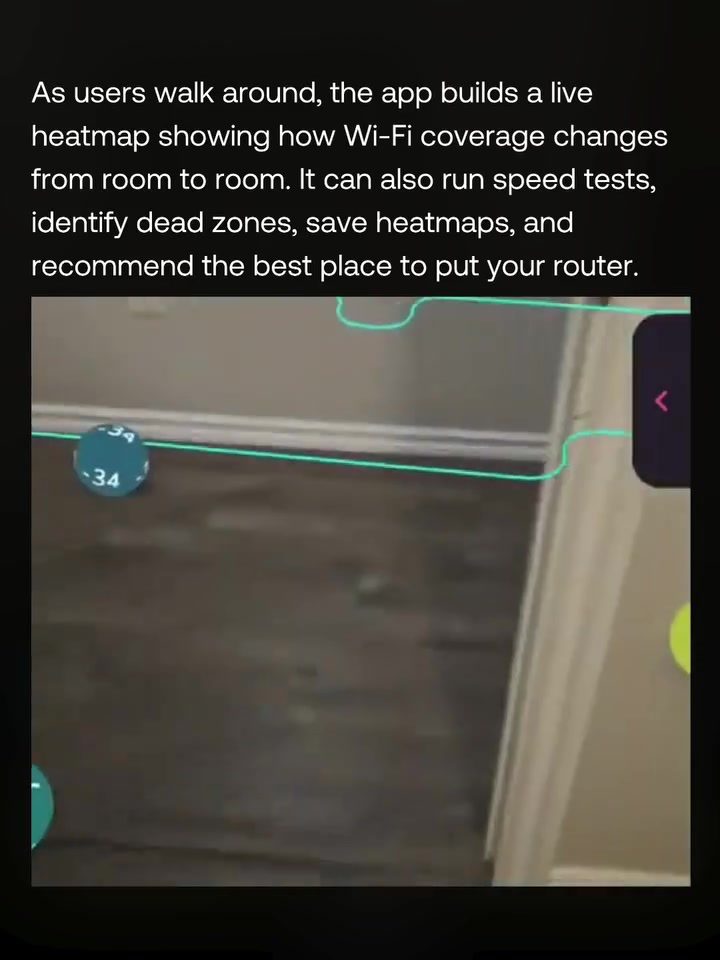
Live Heatmap Generation: As users walk around, the app builds a live heatmap, showing Wi-Fi coverage changes from room to room. This real-time data allows for immediate adjustments and optimisations.
-
Speed Tests: Many apps offer built-in speed tests, providing insights into connection speeds in different areas. This is particularly useful for identifying not just weak signal areas, but also spots where the speed is significantly slower.
-
Dead Zone Identification: By detecting areas with no signal, these apps can help you strategically place additional routers or extenders to eliminate dead zones.
-
Heatmap Saving: Users can save their heatmaps for future reference or to compare changes over time. This is beneficial for tracking improvements or identifying recurring issues.
-
Router Placement Recommendations: Based on the heatmap data, these apps can suggest the best locations for your router to optimise coverage.
Practical Tips for Using Wi-Fi Heatmap Apps
Conducting a Heatmap Survey
To get the most out of your Wi-Fi heatmap app, follow these steps:
-
Walkthrough Your Space: Carry your phone or device through each room, allowing the app to collect data. Be sure to cover areas where you know the signal is weak.
-
Analyse the Results: Once the heatmap is generated, look for patterns and anomalies. Pay close attention to areas with weak or no signal and identify obstructions or interference sources.
-
Make Adjustments: Based on your findings, reposition your router, add additional access points, or invest in signal boosters. Save your initial heatmap and create a new one after making adjustments to track improvements.
-
Check Multiple Floors: If you live or work in a multi-story building, be sure to survey each floor. Wi-Fi signals can degrade significantly between floors, and additional hardware might be needed.
Common Mistakes to Avoid
While Wi-Fi heatmap apps are straightforward, there are a few common pitfalls users should avoid:
- Incomplete Surveys: Not surveying every room or area can lead to incomplete data, resulting in missed dead zones or weak signal areas.
- Ignoring Interference: Objects like metal appliances, thick walls, and even certain electronic devices can interfere with Wi-Fi signals. Make a note of these in your analysis.
- Not Checking Over Time: Network conditions can change over time due to new devices, structural changes, or environmental factors. Periodically running new heatmaps can help you stay on top of these changes.
Important Takeaways
Wi-Fi heatmap apps are essential for anyone looking to maximise their network's performance. By providing a detailed, visual representation of your Wi-Fi coverage, these apps help you identify and address issues that might otherwise go unnoticed. Whether you're troubleshooting a spotty connection or optimising your network for increased reliability, a Wi-Fi heatmap app can be a game-changer.
Conclusion
Investing in a Wi-Fi heatmap app can significantly enhance your network experience. By offering real-time data, speed tests, and strategic recommendations, these tools empower users to create a more reliable and efficient Wi-Fi environment. Whether you're a homeowner, small business owner, or IT professional, the insights provided by a Wi-Fi heatmap app can lead to a stronger, more consistent connection.
Watch the Reel
Questions readers ask
What is a Wi-Fi heatmap app and how does it work?
A Wi-Fi heatmap app is a mobile tool that visualizes your wireless network's signal strength in real-time. It works by scanning your environment and creating a color-coded map that indicates areas with strong, weak, or no signal, helping you identify dead zones and optimize your network.
How can a live Wi-Fi visualization help improve my Wi-Fi signal?
Live Wi-Fi visualization provides a clear, real-time view of your network's performance. By identifying weak signal areas, you can make informed decisions about router placement, or use Wi-Fi extenders to boost signal strength in problem areas.
Can Wi-Fi heatmap apps help eliminate dead zones?
Yes, Wi-Fi heatmap apps are specifically designed to help eliminate dead zones. By showing you exactly where your signal is weak or non-existent, these apps enable you to strategically place routers or extenders to cover those areas and ensure comprehensive Wi-Fi coverage.
Do I need any special equipment to use a Wi-Fi heatmap app?
No, Wi-Fi heatmap apps are designed to be user-friendly and typically do not require any special equipment. All you need is a smartphone or tablet with the app installed. Some apps may offer more advanced features with certain hardware, but the basic functionality is usually sufficient for most users.
How accurate are Wi-Fi signal strength maps generated by these apps?
The accuracy of Wi-Fi signal strength maps can vary depending on the app and the complexity of your environment. However, most reputable apps use reliable algorithms to provide a fairly accurate representation of your network's signal strength. For the best results, ensure you perform the scan in a methodical manner, covering all areas of your space.
What are some key features to look for in a Wi-Fi heatmap app?
When choosing a Wi-Fi heatmap app, look for features like real-time scanning, detailed signal strength maps, easy-to-read visualizations, and the ability to suggest optimal router placements. Additional features such as Wi-Fi speed tests and the ability to save and compare multiple scans can also be beneficial.
How can I use router placement tips from a Wi-Fi heatmap app to optimize my network?
Router placement tips from a Wi-Fi heatmap app provide guidance on positioning your router for optimal signal distribution. Typically, this involves placing the router in a central location, away from obstacles like walls and large furniture, and at an elevated position to ensure the best possible coverage throughout your space.
Related deep dives
Similar reads based on topic and creator.

Recent articles
Fresh deep dives from the latest Reels we unpacked.




Comments
Be the first to comment.