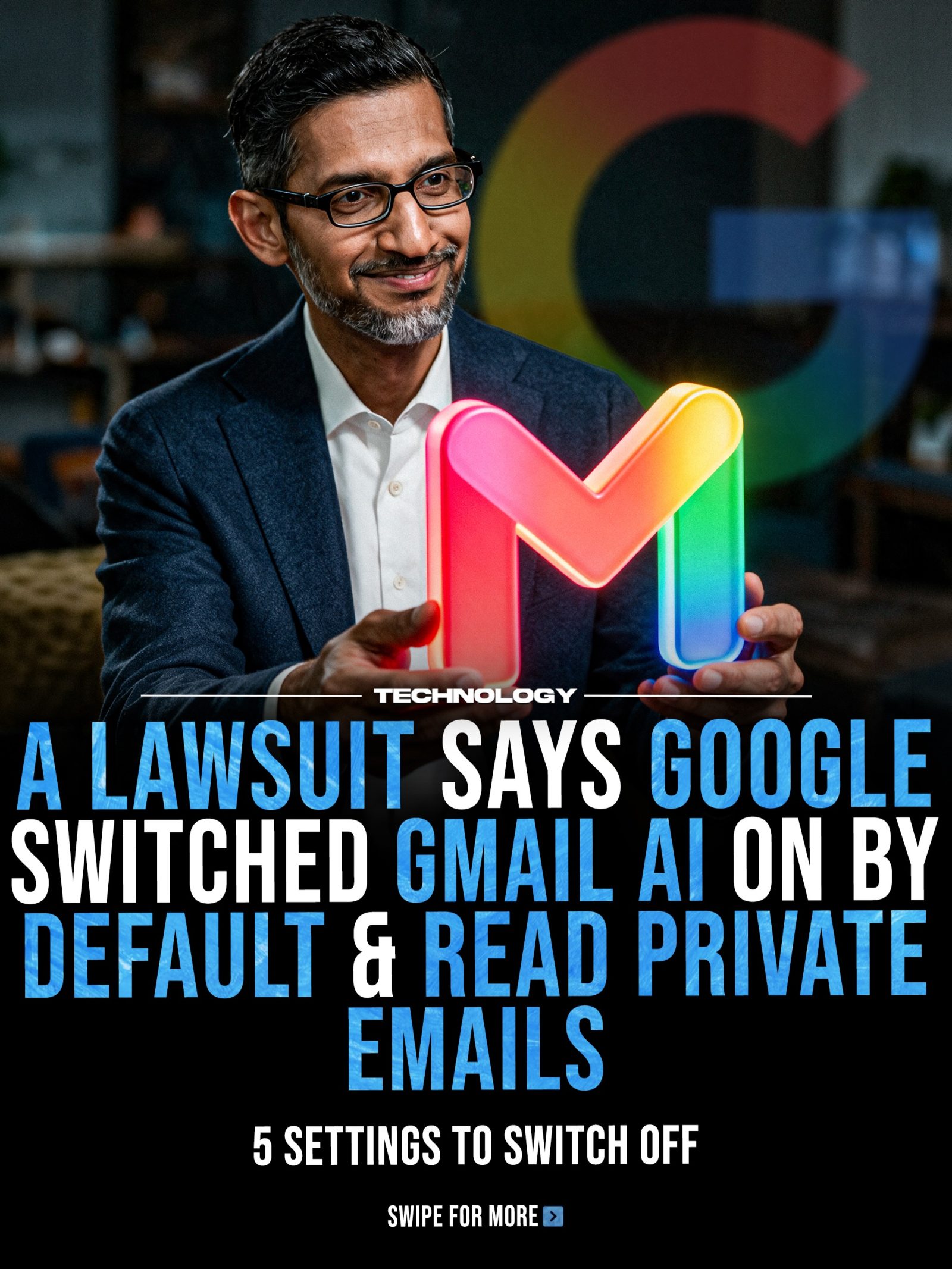
Google Gmail AI Privacy Concerns
Gmail's AI privacy features have come under intense scrutiny due to a recent lawsuit, sparking questions about how email data is managed and which settings users should adjust. The lawsuit claims that Gmail's AI features were enabled by default, which has elevated the profile of privacy settings, including Smart Features, Workspace settings, Gemini activity, and mobile preferences. Although the lawsuit is still ongoing, users should remain informed about how their personal information is accessed and utilized by AI-powered features.
Why This Matters
Gmail is one of the most widely used email services, with millions of users relying on it for both personal and professional communication. The integration of AI into email services offers numerous benefits, such as automated responses, smart sorting, and personalized experiences. However, these advancements come with significant privacy implications. Users need to understand how their data is being used and ensure that their privacy settings align with their comfort levels.
For example, AI features could potentially access sensitive information, such as medical, legal, or financial data, if not properly managed. This is where knowing where these privacy controls are and how to disable certain features becomes crucial.
Main Discussion
Understanding the Lawsuit
A recent lawsuit alleges that Google activated Gmail's AI features by default, which means that many users may have had their emails read and processed by AI without their explicit consent. This has raised serious concerns about data privacy and user consent. The case, involving Thele v. Google, has brought renewed attention to the Smart Features, Workspace settings, and Gemini activity, highlighting the need for users to review and adjust their privacy settings.
Key Settings to Review
Given the potential privacy risks, it is essential to review and adjust several key settings in Gmail and Google Workspace. Here are some of the most critical settings to consider:
1. Smart Features Settings
Smart features in Google Workspace are designed to personalize your experience by analyzing your content and activity. However, these features can access sensitive information if not properly managed. To disable smart features:
- Go to the Smart Features Settings: Navigate to the Workspace Smart Features Settings within your Google Account.
- Turn Off Both Checkboxes: Ensure that both checkboxes are turned off to fully disable the AI from reading your emails and other content.
- Save Changes: Make sure to save your changes to ensure that the settings are applied.
2. Managing Gemini Activity
Gemini is another AI feature that may access and review your email content. If you have used Gemini, it is essential to manage and delete your Gemini history to prevent any unauthorized access. Here’s how to do it:
- Turn Off Gemini Apps Activity: Go to the Gemini Apps Activity settings and turn off the feature.
- Delete Gemini History: Delete all Gemini history to ensure that no reviewed chats remain accessible. Reviewed chats can stay for up to three years, so it’s crucial to remove them promptly.
3. Alternative Email Services
For highly sensitive conversations, such as medical, legal, or financial discussions, consider using alternative email services that prioritize privacy. One such service is Proton Mail, which offers end-to-end encryption and enhanced privacy features. This can provide an extra layer of security for sensitive communications.
The Hidden Switch
It is important to recognize that turning off the first setting in the Smart Features page is not enough. Many users stop there, assuming their privacy is protected. However, to fully disable AI from accessing your emails, you need to take additional steps. On the same page, open the Manage Workspace Smart Feature Settings, turn off both checkboxes, and save your changes. This ensures that the AI is not reading your emails or other content.
Practical Tips
To safeguard your privacy and control how your personal information is accessed, follow these practical tips:
- Regularly Review Privacy Settings: Make it a habit to review and adjust your privacy settings regularly. Technology and settings can change, so staying informed is crucial.
- Use Strong, Unique Passwords: Ensure that your Gmail account is protected with a strong, unique password. Consider using a password manager to generate and store complex passwords.
- Enable Two-Factor Authentication: Add an extra layer of security by enabling two-factor authentication. This makes it harder for unauthorized users to access your account.
- Be Mindful of Sensitive Information: If you need to share sensitive information via email, consider using alternative methods such as encrypted chats or secure file-sharing services.
- Stay Informed About Privacy Updates: Keep an eye on updates from Google and other technology providers regarding privacy settings and policies. This ensures you are always up-to-date on the latest changes and recommendations.
Important Takeaways
Gmail's AI features, while beneficial, come with significant privacy implications. Users should take the following actions to protect their personal information:
- Review and Adjust Privacy Settings: Regularly review and adjust the Smart Features, Workspace, and Gemini settings to ensure that your data is protected.
- Understand the Implications of AI Features: Be aware of how AI features access and use your data, and make informed decisions about which features to enable or disable.
- Consider Alternative Email Services: For highly sensitive conversations, use alternative email services like Proton Mail that offer enhanced privacy features.
Conclusion
The recent lawsuit against Google highlights the importance of understanding and managing Gmail's AI privacy settings. By reviewing and adjusting key settings, users can take control of their personal information and decide how much access AI-powered features have to their data. Whether you agree with the lawsuit or not, knowing where these privacy controls are gives you more control over your account. Stay informed and proactive to ensure your privacy and security in the digital age.
Watch the Reel
Questions readers ask
What specific AI features are currently enabled by default in Gmail?
Gmail's AI features, such as Smart Features, Google Workspace settings, and Gemini activity, may be enabled by default. These features can access and utilize your personal data to enhance functionality, but they have raised privacy concerns.
How can I review and adjust my Gmail AI settings?
To review and adjust your Gmail AI settings, go to your Gmail settings by clicking on the gear icon, then select 'See all settings.' Navigate to the 'Privacy and Security' tab. From there, you can manage Smart Features, Google Workspace settings, and Gemini activity.
What is Google Gemini, and why should I be concerned about its privacy implications?
Google Gemini is an AI system integrated into Gmail that helps with tasks like drafting emails and organizing your inbox. Privacy concerns arise because it may access and analyze your email content to function effectively.
How do I turn off Google Workspace AI features in Gmail?
To disable Google Workspace AI features, log into your Google Admin console, go to 'Apps' > 'Google Workspace' > 'Gmail' > 'Advanced settings.' Under the 'Smart Features' and 'AI Integration' sections, you can turn off specific features or disable AI entirely. If you're a standard user and not an admin, you may need to request these changes from your administrator.
Can I delete the AI activity history stored by Gmail?
Yes, you can delete or manage your AI activity history in Gmail. Go to your Google Activity Controls and navigate to the 'Web & App Activity' section. Here, you can view and delete your AI activity history, ensuring that your past interactions are removed from the AI system.
What are the potential impacts on Gmail functionality if I disable AI features?
Disabling AI features in Gmail may slightly reduce the convenience of certain automated tasks, such as Smart Reply suggestions, email categorization, and spelling corrections. However, core email functionalities, like sending and receiving emails, will remain unaffected.
Related deep dives
Similar reads based on topic and creator.

Recent articles
Fresh deep dives from the latest Reels we unpacked.




Comments
Be the first to comment.