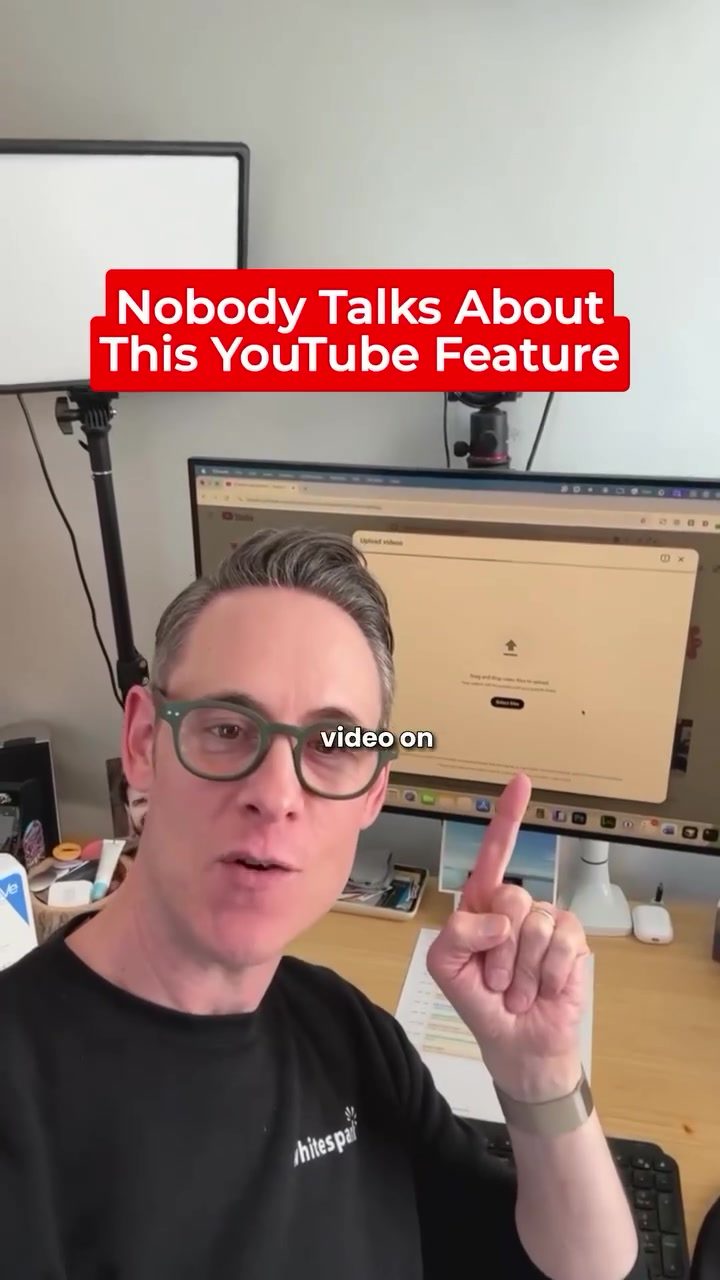
Connecting YouTube to Google Maps: A Powerful Tool for Local Businesses
YouTube offers a feature that can significantly enhance the visibility and credibility of local businesses. By integrating YouTube with Google Maps, businesses can display a Google Maps button on their YouTube videos, linking directly to their Google Business Profile. This feature not only increases visibility but also helps build trust and drives conversions.
Why This Matters
In today's digital landscape, local businesses need every advantage to stand out. This YouTube feature ensures that when users search for local services, they can find your business in two places: in the local pack and in the video carousel. This dual presence increases the chances of capturing potential customers. Additionally, it helps Google understand that your content is linked to a real, local business, strengthening your entity signals.
How to Enable the Feature
Step-by-Step Guide
-
Mention Business Details in Descriptions: When publishing a video, include your business name and city in the video description. This step is crucial as it helps YouTube associate your content with your physical location.
-
Enable Featured Places: In YouTube Studio, enable the "Featured Places" option. This allows YouTube to automatically connect your videos to your business's physical location.
-
Connect to Google Business Profile: Ensure your YouTube channel is linked to your Google Business Profile. This connection is vital for the Google Maps button to appear on your videos.
Additional Tips
-
Add Video Location: If the feature isn’t triggering, try adding a video location in YouTube Studio. This can help YouTube recognize the geographical context of your content.
-
Consistent Google Account: Ensure that your YouTube channel and Google Business Profile are under the same Google account. This consistency helps in seamless integration.
-
Mention Business Name and Website: Include your business name and a link to your website in the first lines of your video description. This reinforces the connection between your video content and your business.
Practical Tips for Maximizing Visibility
Optimize Your Video Descriptions
Your video descriptions should be more than just a summary of the content. Include relevant keywords, your business name, and city to help YouTube understand the context of your videos. This not only helps with the Google Maps integration but also improves your video's overall search visibility.
Utilize Social Profiles
Building customer trust is essential for any business. By adding social profiles to your YouTube channel, you provide users with more ways to engage with your brand. This can lead to higher engagement and better conversions.
Important Takeaways
- Increased Visibility: By showing up in both the local pack and video carousel, you double your chances of being seen by potential customers.
- Stronger Entity Signals: Google can better understand that your content is tied to a legitimate local business, which can improve your search rankings.
- Higher Conversions: Users who watch your video can easily navigate to your Google Business Profile, check reviews, and take action without extra searching. This streamlined process can lead to higher conversion rates.
Conclusion
Connecting YouTube to Google Maps is a powerful strategy for local businesses looking to enhance their online presence. By following the steps outlined, you can ensure that your YouTube videos are not only informative but also highly visible and trustworthy. This feature is more about visibility, trust, and conversions, making it an essential tool for any business aiming to stand out in the local market.
Watch the Reel
Questions readers ask
How do I add a Google Maps link to my YouTube videos?
To add a Google Maps link to your YouTube videos, you'll first need to ensure your Google Business Profile is verified. Then, on your YouTube channel, navigate to the video you want to edit. Under the video, click on 'Details' and then in the 'Links' section, click 'Add.' Enter the URL of your Google Business Profile and then click 'Save.' This will create a clickable link to your Google Maps listing in the video's description.
Why should my local business connect YouTube to Google Maps?
Connecting YouTube to Google Maps enhances your local business visibility by allowing users to find your business on both the video carousel and the local pack. This dual presence makes it easier for potential customers to discover and trust your business, driving more traffic to your website and physical location.
Will adding Google Maps to my YouTube videos improve my local ranking?
Yes, integrating Google Maps with your YouTube videos can improve your local ranking. When you include a link to your Google Business Profile, it signals to search engines that your business is relevant to local searches, which can boost your visibility in local search results.
Can I add Google Maps to any YouTube video?
You can add a Google Maps link to any YouTube video as long as you are the video's owner. Navigate to the video in question, and edit the description to include a clickable link to your Google Business Profile. This process is the same for all videos on your channel.
What is the YouTube Places button and how do I use it?
The YouTube Places Button is a feature that allows viewers to see your business location directly on the video. To use it, you need to add your Google Business Profile link to your video description. Viewers can then click this link to see your business on Google Maps, making it easier for them to find your location.
How can I ensure my Google Business Profile is connected to my YouTube videos?
To ensure your Google Business Profile is connected to your YouTube videos, you need to enter the URL of your Google Business Profile in the 'Links' section of the video's description. Once this is done, users can click on this link to view your business on Google Maps, enhancing your local visibility and credibility.
Do I need a specific type of YouTube channel to add Google Maps?
No, you do not need a specific type of YouTube channel to add Google Maps. Any type of YouTube channel, including personal or business channels, can integrate Google Maps by adding a link to their Google Business Profile in the video description. This feature is available to all YouTube users.
Related deep dives
Similar reads based on topic and creator.
Recent articles
Fresh deep dives from the latest Reels we unpacked.
Comments
Be the first to comment.