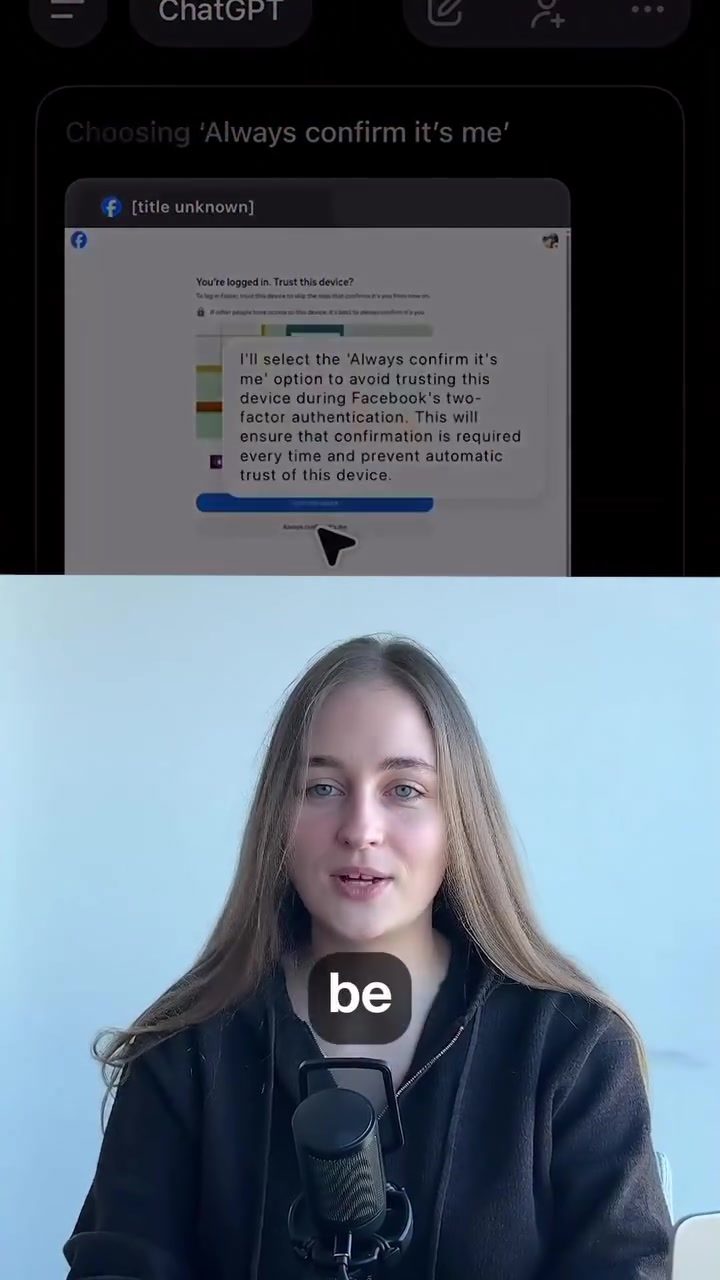
Facebook Two-Factor Authentication: Enhancing Account Security
Understanding and properly configuring two-factor authentication (2FA) on Facebook is crucial for safeguarding your account. With the increasing prevalence of cyber threats, ensuring that your online presence is secure is more important than ever. Let's dive into what 2FA is, why it matters, and how to set it up effectively.
Context: Why This Matters
In an age where digital security is paramount, two-factor authentication adds an extra layer of protection to your online accounts. This additional security measure helps prevent unauthorized access, even if someone obtains your password. For Facebook users, enabling 2FA means that every login attempt will require a second form of verification, significantly reducing the risk of account compromise.
Facebook's 2FA process involves using a smartphone to confirm your identity during the login process. By selecting the 'Always confirm it's me' option, you ensure that every two-factor authentication request requires your manual confirmation. This setting prevents automatic trust of devices, making it a robust security measure to enhance account protection.
Main Discussion
Understanding Two-Factor Authentication
Two-factor authentication is a security process that requires two different forms of identification before granting access to an account. Typically, this involves something you know (like a password) and something you have (like a smartphone). For Facebook, the second factor usually involves a code sent to your registered device.
Step-by-Step Guide to Setting Up 2FA
Configuring 2FA on Facebook is straightforward. Here’s a step-by-step guide:
- Access Security Settings: Open the Facebook app on your smartphone and navigate to the settings menu. Tap on ‘Security and Login.’
- Enable Two-Factor Authentication: Under the ‘Two-Factor Authentication’ section, tap on the ‘Use two-factor authentication’ option.
- Select Your Method: Choose how you want to receive your verification codes. Options typically include receiving a text message or using an authentication app like Google Authenticator.
- Confirm Your Preferences: Follow the prompts to complete the setup process. Ensure that you have your chosen verification method readily available.
- Confirm Trusted Devices: When prompted, select 'Always confirm it's me' to ensure that every login attempt requires your manual confirmation. This step is critical for preventing automatic trust of devices.
By enabling 2FA and selecting the 'Always confirm it's me' option, you add an essential layer of security to your Facebook account. This ensures that every attempt to access your account is verified by you, making it much harder for malicious actors to gain unauthorized access.
Practical Tips for Enhanced Security
- Use a Strong Password: Ensure that your password is complex and unique. Avoid using the same password across multiple platforms.
- Regularly Update Your Devices: Keep your smartphone and other devices up-to-date with the latest security patches and software updates.
- Monitor Your Account Activity: Regularly check your account activity for any unusual login attempts or unauthorized access.
- Backup Recovery Options: Always set up backup recovery options, such as a recovery email or phone number, in case you lose access to your primary device.
- Be Cautious with Phishing Attempts: Be wary of phishing attempts and avoid clicking on suspicious links or providing sensitive information through unsecured channels.
Important Takeaways
- Enhanced Security: Two-factor authentication significantly enhances the security of your Facebook account by requiring a second form of verification.
- Manual Confirmation: Selecting the 'Always confirm it's me' option ensures that every login attempt requires your manual confirmation, preventing automatic trust of devices.
- Regular Monitoring: Regularly monitor your account activity and update your security settings to maintain robust protection.
- Backup Options: Always set up backup recovery options to ensure you can regain access to your account if needed.
Conclusion
Securing your Facebook account with two-factor authentication is a critical step in protecting your online presence. By following the steps outlined and taking additional security measures, you can significantly reduce the risk of unauthorized access. Whether you are an individual user or managing a business page, ensuring that your account is secure is essential for maintaining trust and protecting sensitive information.
Watch the Reel
Questions readers ask
What is two-factor authentication (2FA) and why is it important for my Facebook account?
2FA is a security process that requires two different forms of identification to verify your identity. For Facebook, this means after entering your password, you'll need to provide a second form of verification, such as a code sent to your phone. This extra step is crucial because it significantly reduces the risk of unauthorized access, even if someone steals your password.
How does 2FA help protect my Facebook Marketplace listings?
By enabling 2FA on your Facebook account, you add an extra layer of security to your Marketplace listings. This means that even if a cybercriminal gains access to your password, they still need the second form of verification to access your account and tamper with your listings. This helps protect your inventory and transactions from unauthorized changes or access.
What are the steps to set up 2FA on my Facebook account?
To set up 2FA on Facebook, go to the 'Security and Login' section in your Facebook settings. Under 'Two-Factor Authentication,' click 'Edit' and follow the prompts to choose your preferred method of verification, such as receiving codes via text message or using an authentication app. Make sure to save your backup codes in a secure place in case you lose access to your primary verification method.
Can I still use ChatGPT to automate my Facebook Marketplace listings with 2FA enabled?
Yes, you can still use ChatGPT to automate your Facebook Marketplace listings even with 2FA enabled. However, you may need to use your second form of verification when logging in to ensure that the automation tools or scripts have the necessary access. Always follow secure practices when using automation tools to protect your account.
What should I do if I lose access to my 2FA device while trying to automate my Facebook Marketplace listings?
If you lose access to your 2FA device, you can use your backup codes to regain access to your account. If you don't have backup codes, you may need to go through Facebook's account recovery process. Always keep your backup codes in a secure place and consider using multiple 2FA methods to minimize the risk of being locked out of your account.
How can I ensure that my Facebook Marketplace listings are secure from unauthorized changes?
To ensure the security of your Facebook Marketplace listings, enable 2FA, use strong and unique passwords, and be cautious of phishing attempts. Regularly review your account activity and promptly report any suspicious behavior to Facebook. Additionally, consider using secure methods for automating your listings to minimize the risk of unauthorized access.
What is the role of ChatGPT in automating my Facebook Marketplace listings?
ChatGPT can assist in creating and managing Facebook Marketplace listings by automating tasks such as generating product descriptions, setting prices, and scheduling posts. By integrating ChatGPT with your Facebook account, you can streamline the process of maintaining your marketplace presence, allowing you to focus on other aspects of your business. Make sure to follow best practices for using ChatGPT and maintain strong security measures for your Facebook account.
Related deep dives
Similar reads based on topic and creator.




Recent articles
Fresh deep dives from the latest Reels we unpacked.


Comments
Be the first to comment.