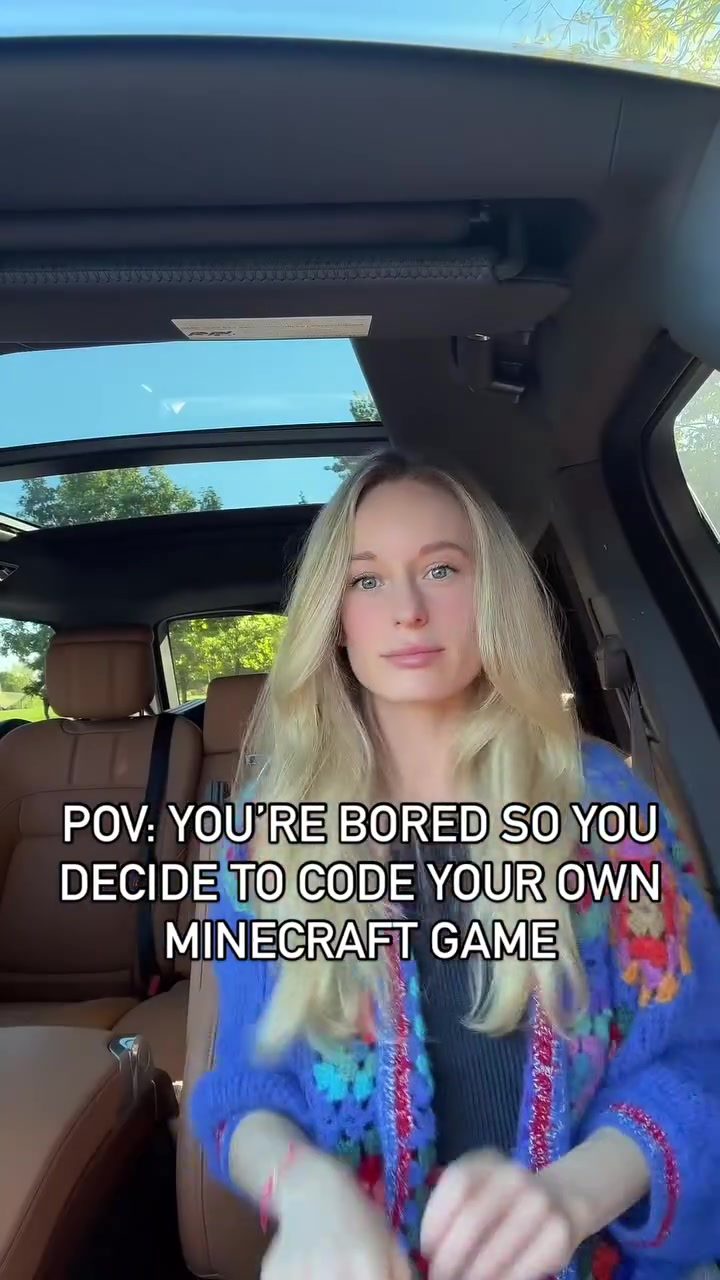
Coding a Minecraft-like Game with Python and Pygame
Coding your own Minecraft-like game can be an exciting project, especially when you use tools like Python and Pygame, which offer a good blend of simplicity and power. This tutorial will guide you through the basics of setting up a simple 2D Minecraft-like game using these technologies, demonstrating how to initialize the display, import necessary libraries, and enhance the gameplay by making the character jump higher.
Context / Why this matters
Coding a Minecraft-like game is not only a fun project but also a practical way to learn and practice essential programming skills. By using Python and Pygame, beginners and experienced developers alike can dive into game development without needing to start from scratch. The process of building this game will help you understand key concepts in game development, such as setting up the display, handling user inputs, and creating basic game mechanics.
Main discussion
Setting Up the Development Environment
Before diving into the code, ensure you have Python installed on your computer. Pygame is a popular library for creating games in Python, and it's essential for this project. You can install Pygame using pip, the Python package installer.
pip install pygame
Initializing Pygame
The first step in any Pygame project is to initialize the library. This is done using the pygame.init() function, which initializes all the imported Pygame modules.
import pygame
pygame.init()
Setting Up the Display
Next, you need to set up the display window where the game will be rendered. Define the width and height of the display and create a display surface using pygame.display.set_mode().
WIDTH, HEIGHT = 1024, 768
screen = pygame.display.set_mode((WIDTH, HEIGHT))
Importing Necessary Libraries
To create a Minecraft-like game, you'll need to import additional libraries. For instance, importing Vector3 from pygame.math can be helpful for handling 3D vectors, even in a 2D environment.
from pygame.math import Vector3
Creating the Game Loop
The game loop is the core of any game. It continuously runs, updating the game state and rendering the display. Here’s a basic structure for a game loop:
running = True
while running:
    for event in pygame.event.get():
        if event.type == pygame.QUIT:
            running = False

    # Game logic and rendering here

    pygame.display.flip()  # Update the display
Enhancing the Game Mechanics
To make the game more engaging, you can add features like character movement and jumping. For example, you can adjust the gravity and the jump height to create a more immersive experience.
# Define constants for gravity and jump
GRAVITY = 0.5
JUMP_HEIGHT = 10

# Character variables
character_y = 0
character_velocity = 0

# Game loop logic
while running:
    for event in pygame.event.get():
        if event.type == pygame.QUIT:
            running = False
        elif event.type == pygame.KEYDOWN:
            if event.key == pygame.K_SPACE:
                character_velocity = -JUMP_HEIGHT

    # Update character position
    character_velocity += GRAVITY
    character_y += character_velocity

    # Ensure the character stays within the screen
    if character_y > HEIGHT:
        character_y = HEIGHT
        character_velocity = 0

    # Render the character
    screen.fill((0, 0, 0))  # Clear the screen
    pygame.draw.rect(screen, (255, 255, 255), (50, character_y, 50, 50))  # Draw the character
    pygame.display.flip()
Practical tips
Use Comments Effectively
Adding comments to your code can make it easier to understand and maintain. Comments can help you remember what each part of the code does, especially if you revisit the project after some time.
# Set the window size
WIDTH, HEIGHT = 1024, 768

# Initialize Pygame
pygame.init()

# Create the display window
screen = pygame.display.set_mode((WIDTH, HEIGHT))
Break Down Complex Tasks
Complex tasks, such as setting up the game loop or implementing character movement, can be broken down into smaller, manageable parts. This approach makes the code easier to write, debug, and understand.
Utilize Pygame Documentation
Pygame has extensive documentation and a supportive community. Referring to the official Pygame documentation can provide additional insights and examples.
Important takeaways
Coding a Minecraft-like game using Python and Pygame is a rewarding project that teaches essential game development skills. By initializing Pygame, setting up the display, importing necessary libraries, and enhancing game mechanics, you can create a fun and engaging game. The key is to take it step by step and utilize available resources like documentation and community support.
Conclusion
Creating your own Minecraft-like game is a fantastic way to dive into game development. By using Python and Pygame, you can build a functional game with basic mechanics and gradually add more features to enhance the gameplay. This project not only provides a fun coding experience but also reinforces important programming concepts that can be applied to other projects.
Watch the Reel
Questions readers ask
What are the system requirements for coding a Minecraft-like game using Python and Pygame?
To start coding your Minecraft-like game, ensure you have Python installed on your system. Additionally, you'll need to install the Pygame library, which can be done via pip using the command 'pip install pygame'. A basic text editor or an integrated development environment (IDE) like PyCharm or VSCode will also be helpful for writing and organizing your code.
Can I create a Minecraft-like game with Pygame even if I'm new to game development?
Absolutely! Pygame is designed to be beginner-friendly, making it an excellent choice for those new to game development. This tutorial breaks down the process into manageable steps, from setting up your environment to implementing basic gameplay mechanics like an endless scrolling effect. You'll be able to build a simple 2D game without needing extensive prior coding experience.
How do I set up the display for my Pygame game?
Setting up the display in Pygame is straightforward. You need to initialize Pygame using 'pygame.init()' and then create a display surface with 'pygame.display.set_mode((width, height))'. This will set the dimensions of your game window. You can also set the title of the window using 'pygame.display.set_caption('Your Game Title')'.
What is an endless scrolling effect and how can I implement it in my game?
An endless scrolling effect is a technique used to create the illusion of an infinitely long environment. In your game, you can achieve this by moving the background or terrain elements continuously in the opposite direction of the player's movement. This requires updating the positions of these elements in your game loop to create a seamless scrolling effect.
How can I make the character in my Pygame game jump higher?
To make the character jump higher in your Pygame game, you'll need to adjust the physics of the jump. This involves modifying the jump velocity and the gravity applied to the character. By increasing the initial jump velocity and fine-tuning the gravity, you can achieve a higher and more controllable jump. You'll also need to handle the jump state and collision detection to ensure the character behaves realistically.
Recent articles
Fresh deep dives from the latest Reels we unpacked.


Comments
Be the first to comment.